

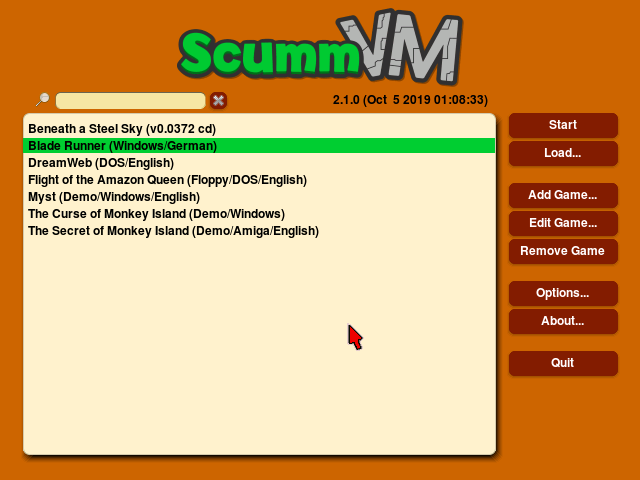
Script Creation Utility for Maniac Mansion Virtual Machine (ScummVM).
-
ScummVM is a program which allows you to run certain classic graphical point-and-click adventure games and role-playing games, provided you already have their data files. The clever part about this: ScummVM just replaces the executables shipped with the games, allowing you to play them on systems for which they were never designed!
ScummVM supports a huge library of adventures with over 250 games in total. It supports many classics published by legendary studios like LucasArts, Sierra On-Line, Revolution Software, Cyan, Inc. and Westwood Studios. Next to ground-breaking titles like the Monkey Island series, Broken Sword, Myst, Blade Runner and countless other games you will find some really obscure adventures and truly hidden gems to explore.
You can find a full list with details on which games are supported and how well on the compatibility page. -
Prerequisites:
- A homebrew enabled PlayStation Vita console.
Detailed jailbreaking instructions can be found online. - At least one ScummVM supported game.
The list of compatible games can be seen here: https://www.scummvm.org/compatibility/. - The page Where to get the games references some places where those games can be bought.
Demonstration versions for most of the supported games are downloadable on https://scummvm.org/demos/
- A homebrew enabled PlayStation Vita console.
-
Installing:
- From a computer, download the installable release package (*.vpk).
- Alternatively, the latest nightly version with lots of improvements is here (needs to be unzipped).
- Copy the .vpk file to the PlayStation Vita and install it using Vitashell like any other homebrew.
Saves are written to the ux0:/data/scummvm/saves folder.
-
[TBODY] [/TBODY]Game Controller Mapping: Button Action Left stick Mouse R + Left stick Slow Mouse 
Left mouse button 
Right mouse button DPad Keypad "Cursor" Keys (useful for character motion in Sierra games) R + DPad Diagonal Keypad "Cursor" Keys L Trigger Game menu (F5) R Trigger Shift (used to enable Mass Add in menu) 
Period '.' (used to skip dialog lines) R +
Space ' ' 
Escape (used to skip cutscenes) R +
Return 
ScummVM's global in-game menu 
Toggle virtual keyboard R +
AGI predictive input dialog Front Panel Touch Controls, always enabled (from version 2.1.0): Touch Action short single finger tap Move pointer to finger position and left mouse button click short second finger tap while holding one finger Move pointer to first finger position and right mouse button click single finger drag Move pointer directly with finger dual finger drag (long second finger tap while holding one finger) Move pointer while left mouse button is held down (drag'n'drop). The pointer directly follows the first finger. The drag is ended when the last finger is removed. triple finger drag (long second and third finger tap while holding one finger) Move pointer while right mouse button is held down (drag'n'drop). The pointer directly follows the first finger. The drag is ended when the last finger is removed. Back Panel Touch Controls, enabled via Touchpad Mouse Mode option (from version 2.1.0): Touch Action short single finger tap Left mouse button click short second finger tap while holding one finger Right mouse button click single finger drag Move pointer indirectly with finger, pointer speed can be adjusted in control settings dual finger drag (long second finger tap while holding one finger) Move pointer while left mouse button is held down (drag'n'drop). The pointer motion is affected by the first finger. The drag is ended when the last finger is removed. triple finger drag (long second and third finger tap while holding one finger) Move pointer while right mouse button is held down (drag'n'drop). The pointer motion is affected by the first finger. The drag is ended when the last finger is removed. - The user manual describes how to add games to ScummVM and launch them: User Manual
-
Notes:
- For multi-touch gestures, the fingers have to be far enough apart from each other, so that the Vita will not erroneously recognize them as a single finger. Otherwise the pointer will jump around.
- Real bluetooth mice and keyboards work on the Vita and are supported by ScummVM. This was tested working with Jelly Bean BT keyboard and mouse combo ASIN:B06Y56BBYP and with the standalone Jelly Comb Bluetooth Wireless Mouse ASIN:B075HBDWCF. Not all bluetooth keyboards or mice pair successfully with the Vita. Use settings->devices on the Vita home screen to try and pair your devices.
- Touch control mode can be changed via the option "touchpad mouse mode" in options->controls.
- The front touch always uses a direct mode, where the mousepointer jumps to the finger position (like on a mobile phone screen).
- When "touchpad mouse mode" is off, the rear touch is disabled.
- When "touchpad mouse mode" is on, the rear touch is enabled in addition to front touch. The rear touch uses an indirect mode, where the finger can be far away from the pointer and still move it, (like on a laptop touchpad). The pointer speed setting in options->controls affects how far the pointer moves in response to a finger movement on the rear panel.
- The advanced option "frontpanel_touchpad_mode=false" in scummvm.ini can be changed with a texteditor to "frontpanel_touchpad_mode=true" . This forces the front panel into an indirect mode similar to the rear panel. If this option is set, the pointer does not jump to the finger anymore.
- The two finger drag is useful for Full Throttle to bring up the action menu, and in the menu to use the scroll bar in the game list. It works in the following way: holding down two fingers for a while initiates a drag'n'drop where the left mouse button is being held down. The first finger affects mouse motion during the drag, the second finger can be removed without affecting the drag. When the last finger is removed, the left mouse button is released and the drag is over. Note the second finger can be anywhere, it doesn't have to be close to the first finger, and it doesn't have to be put down simultaneously with the first finger, either.
- Typical usage of dual finger drag and drop in Full Throttle: Hold down one finger over an object. Then hold down a second finger somewhere on the screen for a little bit to initiate a dual finger drag. This brings up the action menu. Now let go of the second finger. The dual-finger drag continues since one finger is still down. Select an action with the first finger, and let go of the first finger to end the drag.
- There is also a three finger drag that causes the right-mouse button to be held down, instead of the left one. It might be useful for some games.
-
Thanks:
- Xavier from consoleX for donating a ps vita device
- xerpi for initial SDL2 port
- VITASDK and henkaku developers
Additional links:
https://www.scummvm.org/,
https://forums.scummvm.org/viewforum.php?f=21,
https://en.wikipedia.org/wiki/ScummVM,
https://wiki.scummvm.org/index.php/PlayStation_Vita.


