PS2 Cannot format 1TB SATA HDD using WinHiip

Aquablue

Forum Noob
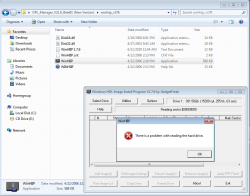
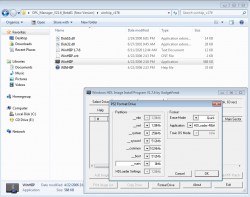
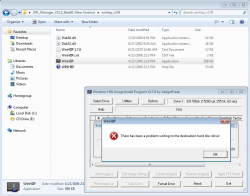
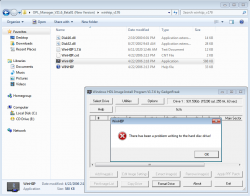
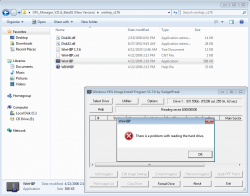
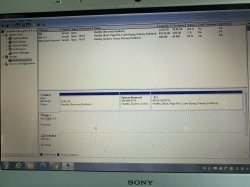
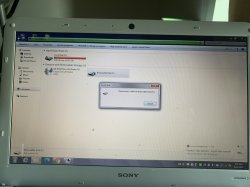
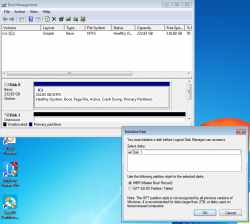
Hello. I have been having a lot of problems lately trying to format a 1TB WD SATA HDD for use on the FAT PS2. I used FreeMcBoot to access HDDManager through LaunchElf. And, I was successfully able to format it on the PS2, and install FreeHDBoot. OPL on the FAT PS2 works fine, and is able to read the hard drive. The only problem I'm having is formatting it using WinHiip. Thereby, preventing me from adding any PS2 games for use on OPL. After clicking on the HDD it tells me, "There is a problem with reading the hard drive." So, I tried to initialize the HDD using Disk Management, but that didn't seem to do the trick. And, as I continue to try to format it using WinHiip, messages continue to popup, and it eventually prevents me from formatting it. I have previously had success in formatting and adding games onto SATA HDDs less than 1TB, but for some reason I'm having a lot of trouble formatting a 1TB SATA HDD using WinHiip. Are there any suggestions you guys could give me? If so, it would be greatly appreciated. Thanks for your time.

I'm using the following:
A Dell computer with Windows 7
A FAT PS2
A PS2 Memory Card installed with FreeMcBoot V. 1.966
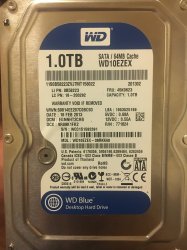
A 1TB WD SATA HDD
A Game Star Network Adapter for PS2 SATA HDD Adapter
 

Attachments

  • 1.png
    1.png
    221.3 KB · Views: 591
  • 2.png
    2.png
    59.7 KB · Views: 584
  • 3.png
    3.png
    63.6 KB · Views: 587
  • 4.png
    4.png
    68.1 KB · Views: 588
  • 5.png
    5.png
    69.9 KB · Views: 582
  • 6.png
    6.png
    68.5 KB · Views: 589
  • 7.png
    7.png
    68.5 KB · Views: 585
  • IMG_5133.JPG
    IMG_5133.JPG
    2.3 MB · Views: 574
Bonjour.

WinHIIP ne fonctionne pas bien sous "Win-7". Il est parfait sous "Win-XP-Pro-SP3".

Cordialement.

English:
WinHIIP does not work well under "Win-7". It is perfect under "Win-XP-Pro-SP3".
 
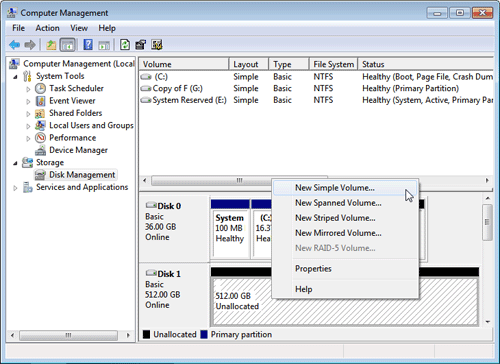
Did you try to create simple volume (primary partition) for that HDD in Disk Management?
Right Click on wanted HDD. Create simple volume:
create.gif


EDIT: Try to use NTFS instead of FAT32.
 
I'm a newbie I want to Jailbreak the Ps2 Fat I have watched too many videos on youtube I'm kind of still confused how can I Format a Western digital 1tb SATA hard drive and I also bought a 3rd party adapter and I got freemcboot as well any help would be appreciated!
 
I'm a newbie I want to Jailbreak the Ps2 Fat I have watched too many videos on youtube I'm kind of still confused how can I Format a Western digital 1tb SATA hard drive and I also bought a 3rd party adapter and I got freemcboot as well any help would be appreciated!

Install your HDD into the NA and PS2.

uLaunch.ELF > MISC:/ > HDDManager > R1 > Format HDD.

And I don't know if this will apply to you or not, but I "expanded" the +OPL partition (as was recommended; ~4GB) and this has evidently killed VMC (Virtual Memory Card) for me. I'm now looking at the prospect of having to start ALL OVER because of this. And it takes forever, and ever, to fill up a 1TB (especially without a batch installer; none are reliable or noobie friendly) even if you're directly connecting to the PC with SATA.

I've seen vague mention of *manually* creating the +OPL partition and specifying the exact size you want it to be (not "expanding it" after the fact), may resolve/prevent this problem. But search me for any further specifics (i.e. what files in those folders need to be manually put back, or if OPL will generate them itself on it's first run), I don't know.
 
I'm now looking at the prospect of having to start ALL OVER because of this. And it takes forever, and ever, to fill up a 1TB (especially without a batch installer; none are reliable or noobie friendly) even if you're directly connecting to the PC with SATA.

For the best reliability HDL Dump Gui 2.3 is perfect. There may be other programs as good as it. However i can guarantee for HDL dump, since I always used it for any kind of HDD (IDE, SATA, 3,5", 2,5" from 80GB to 2TB) and never experience a single problem installing or extracting, either via ETH or directly connecting the HDD to the PC (the latter way, if you have a SATA III HDD, connecting it to PC with a SATA - USB 3.0 adaptor, you can install at +90MBPS).

I've seen vague mention of *manually* creating the +OPL partition and specifying the exact size you want it to be (not "expanding it" after the fact), may resolve/prevent this problem. But search me for any further specifics (i.e. what files in those folders need to be manually put back, or if OPL will generate them itself on it's first run), I don't know.

Indeed this is the correct way. On Ule hddmanager, just after formatting the hdd you should create a +OPL partition with the size that you need (OPL will create the folders into it at the first boot, or you can create them from Ule filebrowser as you prefer). You also need to create a HDLoader Settings (minimum possible size) partition for HDL dump (also winhiip and some other programs) to be able to install games on it.

Now the best thing to do, as @jolek suggested you is to move the +OPL contents, delete the partition and re-create it larger.

I always created it immediately after formatting, so I've not experienced it, but I heard the +OPL partition position could make a noticeable performance difference.
So if you have the HDD almost filled up with games, the new +OPL partition will be at the end of the HDD, so it will be a little slower on loading your game list and cover arts (since them and the cache bin are stored into the +OPL partition).

I'd do like this:
Just delete the old +OPL partition (after backupping) and create the new one. Try it and see if you notice some bad loading performance. If all is ok you're good.
If not, delete again the +OPL partition, check the first game you installed (you can do it from PC with winhiip or on Ule HDDmanager), delete it (one or even the first two games depending on the size. You need to free the space you're going to use for your +OPL partition) using OPL.

Now you can create a new +OPL partition that will be installed at the HDD beginning. After that re-install the game you deleted.
 
For the best reliability HDL Dump Gui 2.3 is perfect. There may be other programs as good as it. However i can guarantee for HDL dump, since I always used it for any kind of HDD (IDE, SATA, 3,5", 2,5" from 80GB to 2TB) and never experience a single problem installing or extracting, either via ETH or directly connecting the HDD to the PC (the latter way, if you have a SATA III HDD, connecting it to PC with a SATA - USB 3.0 adaptor, you can install at +90MBPS).


Indeed this is the correct way. On Ule hddmanager, just after formatting the hdd you should create a +OPL partition with the size that you need (OPL will create the folders into it at the first boot, or you can create them from Ule filebrowser as you prefer). You also need to create a HDLoader Settings (minimum possible size) partition for HDL dump (also winhiip and some other programs) to be able to install games on it.

Now the best thing to do, as @jolek suggested you is to move the +OPL contents, delete the partition and re-create it larger.

I always created it immediately after formatting, so I've not experienced it, but I heard the +OPL partition position could make a noticeable performance difference.
So if you have the HDD almost filled up with games, the new +OPL partition will be at the end of the HDD, so it will be a little slower on loading your game list and cover arts (since them and the cache bin are stored into the +OPL partition).

I'd do like this:
Just delete the old +OPL partition (after backupping) and create the new one. Try it and see if you notice some bad loading performance. If all is ok you're good.
If not, delete again the +OPL partition, check the first game you installed (you can do it from PC with winhiip or on Ule HDDmanager), delete it (one or even the first two games depending on the size. You need to free the space you're going to use for your +OPL partition) using OPL.

Now you can create a new +OPL partition that will be installed at the HDD beginning. After that re-install the game you deleted

Mission completed western digital 1TB Sata hard drive formatted with Unlaunchelf.. next I would like to know how to Add games for PS2 Fat please let me know Step to Step I would really appreciate it thanks :)
 
Last edited by a moderator:
Mission completed western digital 1TB Sata hard drive formatted with Unlaunchelf.. next I would like to know how to Add games for PS2 Fat please let me know Step to Step I would really appreciate it thanks :)

If you already created the +OPL and HDLoader Settings partitions, you can connect the HDD to the PC (remember to always power off the Ps2 from main power and unplug the cord before connecting/disconnecting the NA).

Use this for installations: https://www.psx-place.com/resources/hdl-dump-helper-gui-for-linux-windows.707/history

The only minus is that you need to select games one by one. For speed up things a little, set your iso's path in option menu (so the browser window will directly open where you have your game's isos) and add every game to jobs.
After you added all games, go to the jobs window and hit do jobs.

After installation is finished, check the right column if all games have been correctly installed (if you read err... in some games, write them in a paper).

Installation errors pratically means that the game have not been installed at all due to its name. Make sure to rename games that have the first 23 (if I correctly remember) characters identical:
i.e. If you have Shin Megami Tensei Persona 3 installed, Shin Megami Tensei Persona 4 won't be installed. Just rename them to SMT Persona 3 and SMT Persona 4 or so.

There are also a few games on which the program won't be able to find the ID. If that happen, open the iso with Winzip, Winrar or 7zip and check the ID (it's the file with the number, like SLUS_527.38) and manually enter it.
 
Last edited:
Thanks guys. I have a WD20EZAZ on the way, I will attempt it all again as described and see what we get.

Although, first...

Is there any known size limitation to the +OPL partition?

I want to go overkill, seeing as it can't be resized after the fact. I'm tentatively thinking 10-12 GB.

_
SENSPLAYER07. That is where it really gets murky. I'd used HDL Dump Helper GUI 2.3 before (two years ago). But by account of many, that now only reads a freshly formatted drive *once* and then not again until or unless it is again freshly formatted (so if it does not transfer everything in the added one-by-one batch job list on your first attempt, you're SOL with it). It is likely due to something with Windows 10 that this is suddenly happening, all I can speculate. Seems to be a far-reaching issue, judging by how many are reporting this. That aside, manually adding each and every game to the jobs list was murder...

There are others, but they are a one-game-at-a-time install and/or using command-line (which is not friendly to those that aren't technically inclined). One command-line batcher I tried didn't work at all, too. Lots of trial-and-error involved, unfortunately.

Anyway. I'd recommend you directly connect the HDD to your PC via SATA and/or an SATA to USB adapter of some sort. Don't try to load them all in via Ethernet because it's slow as molasses (literally, it would take you months lol). But when you do that and tell whatever loader where/what your PS2 HDD is, it should recognize it and let you install.

As I remember, you should only DELETE games on the PS2. Uninstalling via PC-side software can cause issues (e.g. I tried one, I didn't get the space back as I should have).

Too, be EXTREMELY careful whenever you are messing with your Network Adapter. Your PS2 needs to be OFF (not just in standby; so if you still see the red light, don't!) and UNPLUGGED. For good measure, while it is OFF and UNPLUGGED, flip the power switch a few times to make sure the electricity is really drained from the circuits. The reason being, there is a tiny fuse on the PS2 motherboard that can (will) blow if there is still power when you remove the Network Adapter. And if that fuse blows, your PS2 will not be able to use the NA/HDD/ETH anymore (and it is a witch to fix, I hear). Which is all to say, THESE ARE NOT "HOT SWAPPABLE"! I mention this because I have seen no end of people reporting this happening to them and want to prevent it happening to others.
 
After formatting with UNLauchelf Wester digital blue 1TB HDD WD10EZEX not recognizing my Laptop please help ? How can I add games now ? Thanks
 
How do You know that? Not recognizing means not seen this device, not doesn't see file system because it is for Windows unknown (it understand only MBR and GPT partition tables, and NTFS plus FAT family filesystems, while PS2 using APA/APAEXT partition table and PFS as main filesystem type).
 
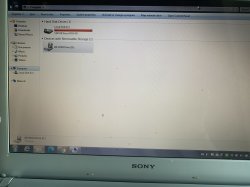
Once I formatted with UNlauchelf HDD not showing up in MY computer I will post pics so you can understand better.. After this wanna to Add games I can't access the HDD! My drive is F isn't not coming up ?
 

Attachments

  • 935861CF-4EAA-40B9-A484-7D113015541E.jpeg
    935861CF-4EAA-40B9-A484-7D113015541E.jpeg
    4 MB · Views: 129
  • 748E5288-F22E-4CC9-911D-3CC244CE0020.jpeg
    748E5288-F22E-4CC9-911D-3CC244CE0020.jpeg
    6.5 MB · Views: 326
Finally F Drive shows up but it says Please insert a disk into removable disk (f) and it's keep loading what can be going wrong ?
 

Attachments

  • 9F3A1A6E-99BC-4611-9EA8-F436C59ED1AF.jpeg
    9F3A1A6E-99BC-4611-9EA8-F436C59ED1AF.jpeg
    3.4 MB · Views: 85
Finally F Drive shows up but it says Please insert a disk into removable disk (f) and it's keep loading what can be going wrong ?

It is normal. As @Berion said, windows cannot recognize a PFS formatted HDD.

Be careful to not let windows formatting it if it appears the prompt.

Have you downloaded the program I linked to you in my previous post?? Be sure to open it as administrator (it should do it automatically).
 
Judging by screen, it is not. Disk Management should recognize device but not recognize it's logic. Instead, on screen device isn't detected (and for some reason got letter as mounted fs... and removable type) so something is wrong by hardware side or You did something stupid in registry. :P So. What have You *exactly* done on Windows side?
 
It is normal. As @Berion said, windows cannot recognize a PFS formatted HDD.

Be careful to not let windows formatting it if it appears the prompt.

Have you downloaded the program I linked to you in my previous post?? Be sure to open it as administrator (it should do it automatically).
which program ?
 
Back
Top