PS2 PS2 Slim with OPL 1.1.0: Using the Eye Toy Cam

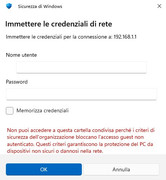
Now I have reinserted the USB stick into the modem/router: the hosting has remained the same, the password has been removed (I mean from the router settings) but when I try to connect from the PC to the stick this message appears (in red):


"You can't access this shared folder because your organization's security policies block unauthenticated guest access. These policies help protect your PC from unsafe or malicious devices on your network."
 
Unfortunately, in this modem router, if I enter the username for the dongle, I also have to enter the password, otherwise it doesn't work.

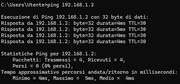
I try to ping ps2
 
Last edited:
I see you're getting too impatient, my friend, ignoring my instructions. I told you that pinging would be the last step, but at least you've done it. Not following all the indicated steps can lead to an incorrect diagnosis.

Status:

Your LAN connection is healthy.

I'll reiterate what I told you to do last, and I don't know if you've already done it, but here it is again:

Try connecting your console directly to the router, not the switch.
 
Here are the tests performed:
A
1) Direct LAN connection between PS2 and router
2) USB stick connected to router: username and password set
3) usual error 301

B
1) Direct LAN connection between PS2 and router
2) USB stick connected to router: username and password NOT set
3) usual error 301
 
Option B is unnecessary, since we already saw that your router blocks "guest" access, so you absolutely need a username and, as you mentioned, a strong password.

Assuming you've already connected your console directly to the router and ruled out a problem with your PS2's LAN hardware (by pinging), as well as a problem with your router and shared resources (access from a PC), the options are limited, leaving one last thing to try, at least of all the ones I know of. Let's make sure your router is using the Samba V1 protocol, which is necessary for connecting to the PS2.

Final steps to take:

1. Access the hostname in the file explorer:

\\192.168.1.1\share name

2. Press the Windows key + X.

3. Select Windows PowerShell (Administrator).

4. Type:

Code:
Get-SmbConnection

Press the "enter" key.

5. Take a screenshot and show it to me.
 
Bingo! My friend, we've found the root of your problem. A connection is being made using a modern version of Samba, version 3. The PS2 needs an older version, as I mentioned, v1, which is why they can't communicate.

With a bit of luck, your router should allow you to select the Samba v1 protocol. Look in your router's settings for an option that lets you do this.
 
This is what it says for my modem/router.

In general, on TIM Technicolor AGHP modem routers (such as the DGA4132 / TIM HUB) with recent original firmware (such as release 19.4), it is not possible to change the Samba version (SMBv1/v2/v3) directly via the web GUI.

Here are the details:
1) Security: SMBv1 is considered insecure and obsolete, which is why most modern firmware, including TIM's, disables native support in favor of SMBv2 or v3 for USB file sharing.
2) Advanced tweaks: Fine-grained control of the Samba server (smb.conf) requires SSH access to the router, which is not natively enabled and often requires "unlocking" procedures (such as custom Ansuel GUIs or the use of hack-technicolor) that go beyond the standard TIM firmware configurations.
3) Workaround: If the problem is connecting older devices (e.g., printers or older PCs), the general recommendation is to enable the SMBv1 client on the Windows computer or operating system attempting to access, rather than forcing the modem to use a vulnerable protocol.

What you can do:
Go to the modem's configuration page (192.168.1.1) and check the File/USB Sharing section. If there's no specific option to force the SMB version, the router will automatically negotiate the most secure version supported by the client.
 
Last edited:
Oh well, buddy, you'll have to connect your PS2 to your PC and see once and for all if you can use the EyeToy Cam this way.

I can guide you through the process if you'd like.
 
ok...So can I keep the USB stick connected to the router (then connect the entire HDD to the router) and connect the PS2 via PC settings?
Bad idea :-) ....is there a small router that can be daisy-chained to the other one to make it work without a PC?
 
The device you're using as a server must have Samba v1 enabled. In your case, the router doesn't have it, so there's no point in leaving the memory connected to it. If you have another router that you intend to use as a server, you'd have to start over.

We're going to take advantage of the auto MDI (Media Dependent Interface)/MDIX (Media Dependent Interface Crossover) technology based on automatic negotiation, which is already present in most devices. This allows for a point-to-point LAN connection regardless of the type of Ethernet cable you're using. In the past, a crossover network cable was necessary for this type of connection, but now it's no longer required, and you don't need an intermediary like the router.

So we can connect the PS2 directly to the PC without any problems (I assume you already did this when you pinged it, right?). Naturally, using a P2P connection will be more efficient.

With that said, let's begin:

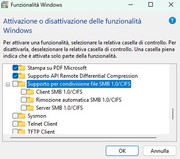
The first thing you need to do is disable version 1 of the Samba protocol on your machine, as we'll be using a program later that will facilitate the connection without leaving your computer vulnerable. To do this, you must disable the options you enabled for Samba version 1 in Windows.

Let me know when you've done that.
 
Now you need to learn how to assign a static IP address to your PC. To do this, follow these steps:

1. Press Windows key + R

2. Type the following:

Code:
ncpa.cpl

Press Enter.

3. Select the Ethernet network, right-click, and select "Properties."

4. Select "Enable Internet Protocol Version 4 (TCP/IPv4)" and click "Properties."

5.- On the general tab, enable the "Use the following IP address" option and enter the following values:

IP address: 192.168.1.3

Subnet mask: 255.255.255.0

Leave the other fields blank.

6. Click "Accept and Close".

Let me know when you've finished.
 
something wrong...after setting ip static the pc didn't connect to modem/router

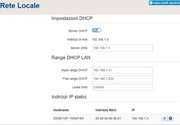
I tried to setting router....


but nothing.....
 
Last edited:
maybe....


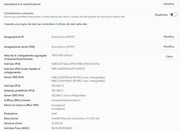
is it correct ??
I think I found the error: I need to fill in the IP address, subnet mask and default gateway
 
Last edited:
My message #74 wasn't very clear, so I'll repeat it:
You'll be making a P2P (point-to-point) connection, meaning you'll connect the PS2 directly to the PC, so forget about your router.
 
ok, so what you did isn't correct?

When I ran this...

3. Select the Ethernet network, right-click, and select "Properties."
4. Select "Enable Internet Protocol Version 4 (TCP/IPv4)" and click "Properties."
5. In the General tab, enable the "Use the following IP address" option and enter the following values:
IP Address: 192.168.1.3
Subnet Mask: 255.255.255.0
Leave the other fields blank.
6. Click "Accept and Close."
The PC is disconnected from the Internet...so I couldn't even post on the forum
 

Similar threads

Back
Top