PS2 PS2 Slim with OPL 1.1.0: Using the Eye Toy Cam

5) what do you mean? What do i ?

In File Explorer, there's a "Network" section; your folder should appear there.

Create the shared folder in a directory on your computer, not on an external drive. This will rule out any potential blocking by your external drive.

I'm starting to lose hope....:apologetic:

Well, saying "losing hope" is too soon, my friend. Sooner or later we'll get to the heart of the matter, just don't be impatient.
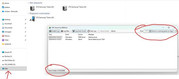
 
Here's the problem: your computer doesn't even appear in the network to begin with.

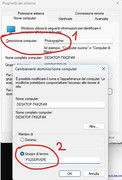
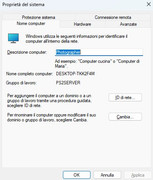
First, let's give your computer a more user-friendly name. Do the following:

1. Press the Windows key + R.

2. Type the following:

Code:
sysdm.cpl

Press Enter

3. Add a description to the team, for example, "players"

4. Click "Rename this team"

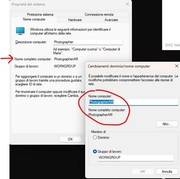
5. Enter a name for your team in the "Team name" field, for example, "PS2Server"

6. Restart the team.

Let me know when you're finished.
 
...at this rate my daughter will be playing PS2 by the time she starts college...
Literally :D

Seriously, it's important that the recipient confirms the steps; missing one could cause problems later on.
Like step 5, which was key to discovering the problem.

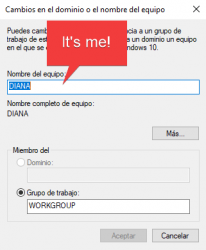
I'm carefully reviewing your screenshots, and you made a mistake (both of our faults): yours for not following the steps and mine for not paying close attention to what you were doing, so I must apologize for that.

What you changed was the workgroup, not the team name as stated in step 5. So please correct that.
 
nombre del equipo.png
 
Okay, do the following:

1. Press the Windows key + R.

2. Type the following:

Code:
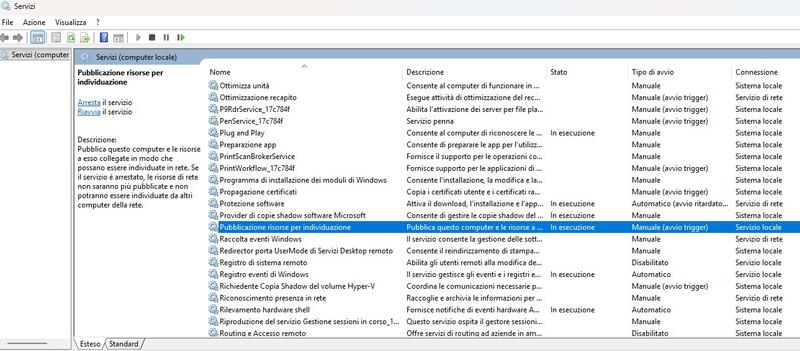
services.msc

Press Enter.

3. Locate the "Function detection resource publication" service and select it.

4. On the "Startup type" tab, ensure it is set to "Automatic (Delayed Start)." If it is not, double-click the service, select "Automatic (Delayed Start)" under Startup type, and click OK.

5. Restart your computer and locate the service again to ensure the change has been saved.

6. If the change has been saved, open File Explorer and go to the Network tab.

7. Check if your computer now appears on the network.

Edit: If the service already has the "automatic (delayed start)" option enabled, stop it, restart your computer, and re-enable it. follow steps 5-7.
 
Last edited:

Similar threads

Back
Top