Ultimate Toolbox

PS3 [RELEASE] ★ Ultimate Toolbox v2.03 - It Only Does Everything! v2.03 (FW 4.84 - 4.91)

Here is the description from this post: https://www.psx-place.com/threads/ps2-netemu-selector.16095/
  • Temperatures Mod - Custom emulator version patched by 3141card to show temperatures of CELL/RSX while playing PS2 games. Additionally patched by kozarovv to fix temps display on every display mode, and set to refresh temp every 2 seconds.
For me the best option is the one that installs the Temperature Mod With Debug Menu.

Does the debug menu only work the first time you press PS? I was never able to make it appear again after the first time, except using the buttom combo
 
I found the option to disable a few XIL items (like Spotify), but I've also been wondering -- is there a way to reenable the folding @home icon? I'm sure that wouldn't enable the client itself, I just wonder if that option is in there somewhere.
No, there is no option for that. There is no way to get Folding@Home working again afaik. You could add a dummy icon anywhere you want easily enough but it would require you to edit some xmls yourself. If you are comfortable with that kind of thing here is a quick basic guide for adding a new dummy icon to the XMB:

1. First use FTP or a file manager to find the xml for the category you want to add something to. In this case it would be dev_blind/vsh/resource/explore/xmb/category_network.xml.

2. Copy the XML file to your PC, Then make an extra copy of this file in case you make a mistake and need to start again, or in case you want to revert your changes later. If you mess up this file the worst thing that can happen is you will have a blank network category. Simply replacing the xml with the original and rebooting will fix it.

3. Then you need to use a text editor like Notepad++ to add a new query like this at the top of the xml in with the other queries. This query is added so the OS knows to check if something exists lower down in the xml. The tags "key" and "src" can be anything you want, but it must be in this format:
Code:
<Query
class="type:x-xmb/folder-pixmap"
key="dummy_item1"
src="#dummy_item1"
/>

Note 1: On its own this above query will do nothing, you will see no changes on the XMB and it will cause no issues if you do not add anything else.

Note 2: The order of the queries in the XML is the order they will display on the XMB so add it where you would like your new dummy item to show up.

4. So with the above query added the OS will now check for a "View ID" item called "dummy_item1" lower down in the xml. You can put this next bit at the very bottom of the xml if you want, just make sure its before the very last </XMBML> tag. The order of the "View IDs" are not really important. So anywhere at all will do.

This example will add an item that will do nothing when clicked:
Code:
<View id="dummy_item1">
<Attributes>
<Table key="dummy1">
<Pair key="icon"><String>/dev_flash/vsh/resource/explore/icon/fah-xmb.png</String></Pair>
<Pair key="title"><String>Folding@Home</String></Pair>
</Table>
</Attributes>
<Items>
<Item class="type:x-xmb/module-action" key="dummy1" attr="dummy1" />
</Items>
</View>

This example will add an item that will act like an empty sub folder when clicked:
Code:
<View id="dummy_item1">
<Attributes>
<Table key="dummy1">
<Pair key="icon"><String>/dev_flash/vsh/resource/explore/icon/fah-xmb.png</String></Pair>
<Pair key="title"><String>Folding@Home</String></Pair>
</Table>
</Attributes>
<Items>
<Query class="type:x-xmb/folder-pixmap" key="dummy1" attr="dummy1" src="#dummy_sub_folder1"/>
</Items>
</View>

That's it really. This guide is for normal CEX FW or HEN, If you are DEX FW it gets a bit more complicated as you need to edit different xmls.

 
Last edited:
No, there is no option for that. There is no way to get Folding@Home working again afaik. You could add a dummy icon anywhere you want easily enough but it would require you to edit some xmls yourself. If you are comfortable with that kind of thing here is a quick basic guide for adding a new dummy icon to the XMB:

1. First use FTP or a file manager to find the xml for the category you want to add something to. In this case it would be dev_blind/vsh/resource/explore/xmb/category_network.xml.

2. Copy the XML file to your PC, Then make an extra copy of this file in case you make a mistake and need to start again, or in case you want to revert your changes later. If you mess up this file the worst thing that can happen is you will have a blank network category. Simply replacing the xml with the original and rebooting will fix it.

3. Then you need to use a text editor like Notepad++ to add a new query like this at the top of the xml in with the other queries. This query is added so the OS knows to check if something exists lower down in the xml. The tags "key" and "src" can be anything you want, but it must be in this format:
Code:
<Query
class="type:x-xmb/folder-pixmap"
key="dummy_item1"
src="#dummy_item1"
/>

Note 1: On its own this above query will do nothing, you will see no changes on the XMB and it will cause no issues if you do not add anything else.

Note 2: The order of the queries in the XML is the order they will display on the XMB so add it where you would like your new dummy item to show up.

4. So with the above query added the OS will now check for a "View ID" item called "dummy_item1" lower down in the xml. You can put this next bit at the very bottom of the xml if you want, just make sure its before the very last </XMBML> tag. The order of the "View IDs" are not really important. So anywhere at all will do.

This example will add an item that will do nothing when clicked:
Code:
<View id="dummy_item1">
<Attributes>
<Table key="dummy1">
<Pair key="icon"><String>/dev_flash/vsh/resource/explore/icon/fah-xmb.png</String></Pair>
<Pair key="title"><String>Folding@Home</String></Pair>
</Table>
</Attributes>
<Items>
<Item class="type:x-xmb/module-action" key="dummy1" attr="dummy1" />
</Items>
</View>

This example will add an item that will act like an empty sub folder when clicked:
Code:
<View id="dummy_item1">
<Attributes>
<Table key="dummy1">
<Pair key="icon"><String>/dev_flash/vsh/resource/explore/icon/fah-xmb.png</String></Pair>
<Pair key="title"><String>Folding@Home</String></Pair>
</Table>
</Attributes>
<Items>
<Query class="type:x-xmb/folder-pixmap" key="dummy1" attr="dummy1" src="#dummy_sub_folder1"/>
</Items>
</View>

That's it really. This guide is for normal CEX FW or HEN, If you are DEX FW it gets a bit more complicated as you need to edit different xmls.

Nice! Thanks for the walk through. I'm somewhat comfortable with xml, so it all made sense.

For testing things, should I stick with the network category? Is that "best practice", or can I add in whatever I want?
 
Nice! Thanks for the walk through. I'm somewhat comfortable with xml, so it all made sense.

For testing things, should I stick with the network category? Is that "best practice", or can I add in whatever I want?
Yes, well I found if you are learning or practicing mods it is best to avoid the game category and the user category. Then if you mess something up at least you can still use the console and access applications to fix the issue.

If you break the user category and do not have a local user set up to autologin then you can end up in a situation where you need to reinstall CFW to recover. So just stick to the less important categories until you are fairly confident in your modding skills.

Also it's always a good idea to have background FTP and dev_blind enabled at boot time with webMAN MOD, then if you do break something like RCO file that causes the system to hang during boot up, 9 times out of 10 you can recover it via FTP without having to reinstall FW.

BTW If you want to get into more complicated mods, dump some xmls from dev_hdd0/game/ULTOOLBOX/ , there are examples of just about everything that is possible to do via xml in there.
 
Last edited:
No, there is no option for that. There is no way to get Folding@Home workingagain afaik. You could add a dummy icon anywhere you want easily enough but it would require you to edit some xmls yourself. If you are comfortable with that kind of thing here is a quick basic guide for adding a new dummy icon to the XMB:

1. First use FTP or a file manager to find the xml for the category you want to add something to. In this case it would be dev_blind/vsh/resource/explore/xmb/category_network.xml.

2. Copy the XML file to your PC, Then make an extra copy of this file in case you make a mistake and need to start again, or in case you want to revert your changes later. If you mess up this file the worst thing that can happen is you will have a blank network category. Simply replacing the xml with the original and rebooting will fix it.

3. Then you need to use a text editor like Notepad++ to add a new query like this at the top of the xml in with the other queries. This query is added so the OS knows to check if something exists lower down in the xml. The tags "key" and "src" can be anything you want, but it must be in this format:
Code:
<Query
class="type:x-xmb/folder-pixmap"
key="dummy_item1"
src="#dummy_item1"
/>

Note 1: On its own this above query will do nothing, you will see no changes on the XMB and it will cause no issues if you do not add anything else.

Note 2: The order of the queries in the XML is the order they will display on the XMB so add it where you would like your new dummy item to show up.

4. So with the above query added the OS will now check for a "View ID" item called "dummy_item1" lower down in the xml. You can put this next bit at the very bottom of the xml if you want, just make sure its before the very last </XMBML> tag. The order of the "View IDs" are not really important. So anywhere at all will do.

This example will add an item that will do nothing when clicked:
Code:
<View id="dummy_item1">
<Attributes>
<Table key="dummy1">
<Pair key="icon"><String>/dev_flash/vsh/resource/explore/icon/fah-xmb.png</String></Pair>
<Pair key="title"><String>Folding@Home</String></Pair>
</Table>
</Attributes>
<Items>
<Item class="type:x-xmb/module-action" key="dummy1" attr="dummy1" />
</Items>
</View>

This example will add an item that will act like an empty sub folder when clicked:
Code:
<View id="dummy_item1">
<Attributes>
<Table key="dummy1">
<Pair key="icon"><String>/dev_flash/vsh/resource/explore/icon/fah-xmb.png</String></Pair>
<Pair key="title"><String>Folding@Home</String></Pair>
</Table>
</Attributes>
<Items>
<Query class="type:x-xmb/folder-pixmap" key="dummy1" attr="dummy1" src="#dummy_sub_folder1"/>
</Items>
</View>

That's it really. This guide is for normal CEX FW or HEN, If you are DEX FW it gets a bit more complicated as you need to edit different xmls.


To be honest Foldin@Home can be easily added again

1. Add this to the category_network.xml root items

<Query class="type:x-xmb/folder-pixmap" key="seg_folding_at_home" src="xcb://localhost/exists?having=off&rquery=root.fixed_items.fah&cond=Ae+Game:Common.dirPath /dev_hdd0/game+Ae+Game:Common.fileName NPIA00002"/>

and the below code anywhere.

<View id="seg_folding_at_home">
<Attributes>
<Table key="folding_at_home">
<Pair key="info"><String>net_package_install_with_eula</String></Pair>
<Pair key="pkg_src"><String>http://dL-REGION01.ps3.download.playstation.net/download/ps3/L-REGION/lwp/lwp.pkg</String></Pair>
<Pair key="content_name"><String>msg_title_lwp</String></Pair>
<Pair key="content_id"><String>IP9100-NPIA00002_00-0000111122223333</String></Pair>
<Pair key="instruction_rsc"><String>msg_lwp_explanation</String></Pair>
<Pair key="prod_pict_path"><String>/dev_flash/vsh/resource/explore/icon/fah-xmb.png</String></Pair>
<Pair key="focus"><String>last</String></Pair>
</Table>
</Attributes>
<Items>
<Item class="type:x-xmb/xmlnpsignup" key="folding_at_home" attr="folding_at_home"/>
</Items>
</View>

2. If you are on DEX this step is needed

Add this to the category_network_tool2.xml root items

<Query class="type:x-xmb/folder-pixmap" key="seg_folding_at_home" src="xcb://localhost/exists?having=off&rquery=root.fixed_items.fah&cond=Ae+Game:Common.dirPath /dev_hdd0/game+Ae+Game:Common.fileName NPIA00002"/>


3. Now in registory.xml

under <Table key="fixed_items">

add this

<Pair key="fah"><String>xmb://localhost/%flash/xmb/category_network.xml#seg_folding_at_home</String></Pair>

Now the official icon will be back and functional, the app will be downloaded but when you launch the app you will see a message saying the service has terminated

This is the result:

4eeL6Et.png
H8v2VdB.png


Edit: seems like the download link does't work anymore, but a couple of months ago it was working, maybe i messed them as i have 3 variants of the same link.

BTW you can download it from here

NoPSN.com :: Packages For Apps To Bypass PSN Signin On PS3 :: http://www.nopsn.com/pkg/ps3/life-with-playstation
 
Last edited:
To be honest Foldin@Home can be easily added again

Add this to the category_network,xml root items

<Query class="type:x-xmb/folder-pixmap" key="seg_folding_at_home" src="xcb://localhost/exists?having=off&rquery=root.fixed_items.fah&cond=Ae+Game:Common.dirPath /dev_hdd0/game+Ae+Game:Common.fileName NPIA00002"/>

and this, anywhere

<View id="seg_folding_at_home">
<Attributes>
<Table key="folding_at_home">
<Pair key="info"><String>net_package_install_with_eula</String></Pair>
<Pair key="pkg_src"><String>http://dL-REGION01.ps3.download.playstation.net/download/ps3/L-REGION/lwp/lwp.pkg</String></Pair>
<Pair key="content_name"><String>msg_title_lwp</String></Pair>
<Pair key="content_id"><String>IP9100-NPIA00002_00-0000111122223333</String></Pair>
<Pair key="instruction_rsc"><String>msg_lwp_explanation</String></Pair>
<Pair key="prod_pict_path"><String>/dev_flash/vsh/resource/explore/icon/fah-xmb.png</String></Pair>
<Pair key="focus"><String>last</String></Pair>
</Table>
</Attributes>
<Items>
<Item class="type:x-xmb/xmlnpsignup" key="folding_at_home" attr="folding_at_home"/>
</Items>
</View>


Now in registory.xml

under <Table key="fixed_items">

add this

<Pair key="fah"><String>xmb://localhost/%flash/xmb/category_network.xml#seg_folding_at_home</String></Pair>

Now the official icon will be back and functional, but when you launch the app you will see a message saying the service has terminated

Interesting! Where did you find the url for the package? Functionality was removed on fw 3.40, so I was thinking of looking up whatever fw came before that (Sorry mods, I promise to stop sidetracking the thread :))
 
Interesting! Where did you find the url for the package? Functionality was removed on fw 3.40, so I was thinking of looking up whatever fw came before that (Sorry mods, I promise to stop sidetracking the thread :))

I don't remember in which firmware i found it as i downloaded and decompiled almost every firmware released so far.

The links are

http://dL-REGION01.ps3.download.playstation.net/download/ps3/L-REGION/fah/fah.pkg
and
http://dL-REGION01.ps3.download.playstation.net/download/ps3/L-REGION/lwp/lwp.pkg

but they seem to have stopped working, a few months ago iirc i tried one and it was working fine.

See the EDIT post above.
 
Last edited:
can u make a option to remove hen enabler from the hen toolbox, cuz iv enabled it in the xmb, or remove the code that shows it?
It can be removed via the XMB, First go to firmware settings in Ultimate Toolbox, there you can enable dev_blind, then use the File explorer to browse to dev_blind/vsh/resource/explore/xmb/ and find the hen_enabler.xml and press triangle on it and delete it. Then reboot and the Hen Enabler should be gone.
 
It can be removed via the XMB, First go to firmware settings in Ultimate Toolbox, there you can enable dev_blind, then use the File explorer to browse to dev_blind/vsh/resource/explore/xmb/ and find the hen_enabler.xml and press triangle on it and delete it. Then reboot and the Hen Enabler should be gone.
from the hen toolbox, iv enabled it for xmb, i want to remove it from the toolbox itself?

EDIT: i found a way to remove in xml, i would post how i did it but dunno if im allowed
 

Attachments

  • 263494602_642694936863073_7429973712053587174_n.jpg
    263494602_642694936863073_7429973712053587174_n.jpg
    45.7 KB · Views: 41
Last edited:
from the hen toolbox, iv enabled it for xmb, i want to remove it from the toolbox itself?

EDIT: i found a way to remove in xml, i would post how i did it but dunno if im allowed
Ah I see. Yeah the only way to remove the built in HEN enablers would be xml editing. IMO it can be handy to have it there as a backup in case some other app messes up the HEN enabler, like installing an older version.

If you want to explain how you removed it that is no problem at all.
 
Ah I see. Yeah the only way to remove the built in HEN enablers would be xml editing. IMO it can be handy to have it there as a backup in case some other app messes up the HEN enabler, like installing an older version.

If you want to explain how you removed it that is no problem at all.
this is how i did it.

the directory:
/dev_hdd0/game/ULTOOLBOX/USRDIR/xmls/Firmware_Settings_Items

heres the code i removed:

<Table key="hen_options">
<Pair key="icon"><>/dev_hdd0/game/ULTOOLBOX/USRDIR/icon/toggle_hen.png</></Pair>
<Pair key="title"><>HEN Options</></Pair>
<Pair key="info"><>Advanced users - HEN Only</></Pair>
</Table>

<Query class="type:x-xmb/folder-pixmap" key="hen_options" attr="hen_options" src="#hen_option_items"/>
 
Last edited:
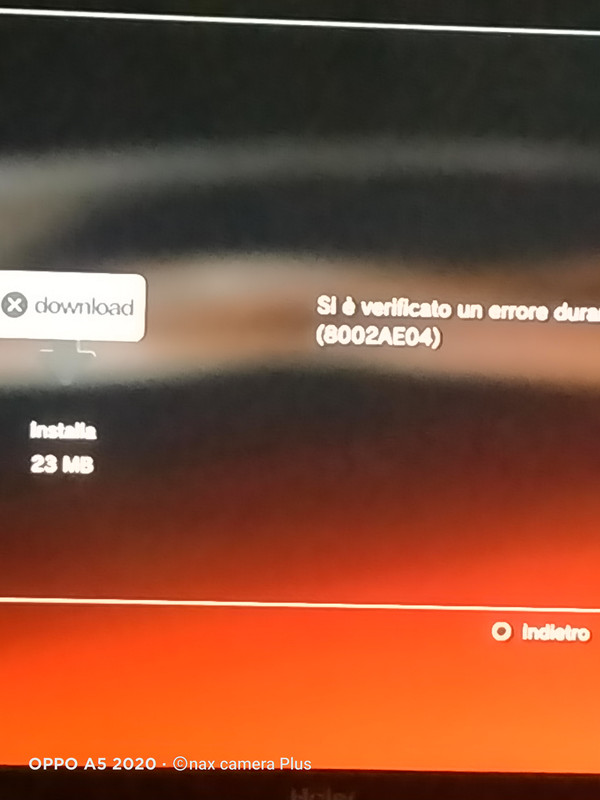
hi devil thank you for your work... I tried to use your tool to download the mods of xbm (I noticed that it downloads the file every time, why download the same pkg twice?) after it gives me an error, on another thread they told me that it is something related to an xml file.


IMG20211207212954.jpg
Looks like my dropbox is maxxed out, too many downloads this month. Not much I can do about that now. The reason it downloads the file every time is just due to limitations of XMBML and the way the PS3 handles these pkg downloads. They auto install and then get auto deleted by the system after install.
 

Similar threads

Back
Top