.
Its been 5 months since I began this guide and I've got it far enough now for an initial release.
It will evolve even more as more and better features are implemented into the new FreeDVDBoot. Watch this space.
DISCLAIMER There isn't much you can do that will mess up or brick your ps2 console as the BootROM is Read-Only.
Nevertheless:
I am not responsible for your mistakes. This guide was put together through my own experiences and any problems that may arise with your experiences are not my problem. Anything is possible when making your console do things it wasn't made to do and if you brick your console because you missed a step, deviated from the instructions or just went gung-ho on your console then that's your fault.
Credits: Huge thank you to ALL developers, past and present, for their dedicated hard work.
Neme and Jimmikaelkael for their past work on FreeMCBoot/FreeHDBoot (FMCB/FHDB) @sp193 for past,present and continued work on FreeMCBoot/FreeHDBoot (FMCB/FHDB). @CTurt for the YaBasic and FDVDB exploits.
@krat0s for the Fortuna Project. @VTSTech for Fortuna Homebrew Launcher and Fortuna FMCB Launcher. @TnA for the plethora of information found here on the PSX-PLACE Forums. @ShaolinAssassin for his tutorials and wiki pages. @UniqueUserName for tutorials, information and just generally for all the hard work put into the the whole scene while he was here, R.I.P
A shout out to all the users on this forum for the little tidbits of information that helped me troubleshoot and fix gaps in my guide.
And lastly, a big thank you to you, the reader.
How does this guide work?
This guide is setup slightly differently than my usual guide format. It is reminiscent of those old school "Choose your own adventure" style books from yesteryear.
Start by choosing your exploit in Part 1 and follow the steps till your reach the end of your "Adventure".
Contents:
Part One - Choose your Exploit
Part Two - Installing and Executing your chosen Exploit
Part Three - Choose your Storage Media
Part Four - Preparing your chosen Storage Media
Part Five - Internal HDD
Part Six - SMB Network
Part Seven - USB HDD
Part Eight - FDVDB (Please note this part hasn't been written yet and will be updated as ongoing advancements hit the scene)
Part 1 - Choose Your Exploit
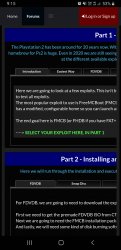
The Playstation 2 has been around for 20 years now. With Sony ending production in 2013!! So the wealth of knowledge, exploits and homebrew for Ps2 is huge. Even in 2020 we are still seeing new exploits discovered and updates to homebrew. Here we are going to look at the different available exploits and choose the one that is best suited to YOU.
Here we are going to look at a few exploits. This isn't by all means a complete list and I haven't had the time (nor the equipment) to test all exploits.
The most popular exploit to use is FreeMCBoot (FMCB) as it is automatically executed from a Ps2 memory card during boot and has a modified, configurable home so you can launch any homebrew/loader from there.
The end goal here is FMCB (or FHDB if you have FAT+NetworkAdaptor+HDD) via an exploit selected here in Part 1.
----> SELECT YOUR EXPLOIT HERE, IN PART 1
The absolute easiest way to get a FMCB Memory Card is either already having access to an exploited Ps2 or purchasing a pre-configured Memory Card. If you have access to an already FMCB exploited Ps2 then you skip to FMCB installation to create another FMCB memory card.
If you choose to purchase a pre-configured FMCB memory card then you can skip to choosing Storage Media
.Requirements:
- A good friend that already has FMCB
----> GO TO PART 2 - FMCB
or
- Money (Purchase FMCB memory card)
----> GO TO PART 3
FreeDVDBoot (FDVDB) is the newest exploit developed and released by @CTurt.
This method of exploiting is very simple and requires the bare minimum.
Currently only compatible with Slim models. Check back for updates to Fat models.
.Requirements:
- Slim Ps2 Model
- Blank DVD-R
- PC with DVD Burner
- USB Flash Drive
- Official Ps2 Memory Card
----> GO TO PART 2 - FDVDB
The Swap Disc trick involves creating an ISO image of a legit game and modifying the image contents to house an additional bootable file (.ELF file) usually an ELF launcher such as uLaunchELF. This modified ISO is then burned to a disc.
The exploit is executed by blocking the disc draw sensors. Then playing your legit game disc up to a certain point. Then you swap your legit disc for your modified disc and then continue the game. Its at this point (different games vary in execution slightly) the .ELF file is executed and you can then launch any homebrew using uLaunchELFs browser.
Once the Ps2 has been turned off, you have to execute the exploit every time you want to launch homebrew. So it is advised to move onto installing FMCB onto a memory card once the exploit is initiated.
.Requirements:
- Legit Game Disc (Compatible games list in Part 2 of this guide)
- Blank CDR/DVDR (depending on chosen game)
- USB Flash Drive
- PC with CD/DVD Burner
- Disc tray modifications (Fairly easy on a slim. NOT easy on a fat)
- Spare Official Sony 8MB Memory Card.
----> GO TO PART 2 - SWAP DISC
This is for PAL region consoles only.
This has been a fairly recent addition to the exploit list.Created by @CTurt, this exploit utilises a demo disc containing a copy of YaBasic. Essentially, you write out the exploit code in YaBasic, save to a memory card and then the exploit can be loaded through YaBasic.
.Requirements:
- Legit demo disc containing YaBasic
- USB Flash Drive
- Spare Official Sony 8MB Memory Card
----> GO TO PART 2 - YABASIC
This exploit is mainly for slim revisions with BOOT-ROM 2.20 and up including the TV. Created by @krat0s. Similar to FMCB, it is executed from a memory card but this is manually triggered by the user rather than automatically like FMCB.
There is an extension of this with Fortuna FMCB Launcher by @VTSTech
.Requirements:
- Spare Official Sony 8MB Memory Card
- A way of copying files to Memory Card
-----> GO TO PART 2 - FORTUNA
FreeMCboot is by far the most preferred exploit on this list. Originally developed by Neme and Jimmikaelkael, it was later taken over by @sp193.
This exploit is rich in features and the desired end goal. You should install this exploit once you have used your chosen "stepping stone" exploit.
.Requirements:
- Spare Official Sony 8MB Memory Card
- Way of copying files to Memory Card (Chosen Exploit)
- USB Flash Drive
----> GO TO CHOSEN EXPLOIT IN PART 2
FreeHDBoot (FHDB) works on the same principles as FMCB but instead boots from an internal HDD. As you may have guessed, this is only compatible with fat models due to the lack of hardware needed to connect a HDD in the slim models. There is a hardware modification for slim model 700xx as it still has ATA connections but these are removed in models after that.
.Requirements:
- Compatible Ps2
- Spare 3.5 IDE HDD
- Official Sony Network Adaptor to connect IDE HDD to Ps2 (Clones may work and some have SATA but usually lack network functionality)
- Way to copy files onto HDD (either with a chosen exploit or connecting your HDD to a PC)
----> GO TO PART 2 - FREEHDBOOT
Part 2 - Installing and Executing your chosen Exploit
Here we will run through the installation and execution of your chosen exploit. Once complete, don't forget to install FMCB.
For FDVDB, we are going to need to download the exploit along with a some software.
First we need to get the premade FDVDB ISO from CTurts GitHub found HERE, download the version that matches your DVD Player version.
Next we are going to need the FMCB installation package, found HERE.
And lastly, we will need some kind of disk burning software, I use IMGBurn, found HERE.
Currently, only DVD Firmware version 3.10E, 3.10U, 3.10A and 3.11J (E.g. All Slim Models) have been confirmed to work, so we are going to check which DVD firmware version we have.
- Boot Ps2
- At the main Ps2 screen (OSDSYS):
- Tap Triangle
- A list will appear containing all the version numbers of the various devices.
- Under "DVD Player", check your version number.
- If you have 3.10E, 3.10U, 3.10A or 3.11J excellent.
- If you don't have one of these versions, note down your version number and continue as normal through the guide.
Then we need to prepare our DVD-R for the exploit.
- Open IMGBurn
- Select "Write Image File to Disc"
- Click the little folder icon under Source
- Navigate and select the Free DVD Boot ISO
- Select your CD/DVD Burner
- Remember, low and slow wins the race. So set your write speed low and use reputable blank discs like Verbatim
- Select the Write option bottom left of window
- Wait for burning to complete.
And finally, we will also prepare our USB Flash Drive with the FMCB Installation.
- Extract:
INSTALL folder
lang folder
FMCBInstaller.elf
to the root of an USB flash drive
- Insert USB into Ps2
Once complete, insert both USB Flash Drive and your burned FDVDB DVD into your Ps2 and boot.
Your FDVDB DVD will boot into wLaunchELF.
PLEASE GIVE FEEDBACK. DID IT WORK FOR YOU? WHAT DVD PLAYER VERSION DO YOU HAVE?
If this method failed for you, and you are NOT on DVD 3.10 then you will have to wait for a newer release that covers your DVD firmware version.
If it failed:
----> RETURN TO PART 1 - Choose Your Exploit
If it succeeded:
----> GO TO PART 2 - FMCB
We are going to need some PC software to create and modify an ISO from the original disc.
- Disc imaging software to create and burn the ISO. I will use IMGBurn as an example, found HERE.
- Apache. An application used to modify the contents of an ISO, found HERE.
We are also going to need a copy of wLaunch.ELF, found HERE.
Once you have installed IMGBurn and Apache we need to choose a game from the list below. Each game has a slightly different way of creating and executing the exploit. For this guide I will be using 007: Agent Under Fire.
007 Agent under fire, DRIVING.ELF - Full tutorial in this guide
007 from Russia with love, NFS.ELF [ go to the need for speed DEMO from the main menu, and it will boot wlaunchelf ]
SOCOM Combined Assault, SCUSNGUI.ELF [swap at main menu, select "MULTIPLAYER", now select "LAN", you will go to another screen where you exit, upon exiting that screen wlaunchelf will start.]
Metal Gear Solid 3 Snake Eater, NETDOWN.ELF [ press start, your now at the main menu, swap disks, select "SPECIAL", now select "CAMOUFLAGE DOWNLOAD", wlaunchelf will start]
Socom 3, SCUSNGUI.ELF [from main menu, select your save, select "ONLINE", select "LAN", select "EDIT CONFIGURATION", wlaunchelf will start ]
Socom 2, SCUSNGUI.ELF [from the main menu, swap in your backup, select "LAN", select "EDIT NETWORK CONFIGURATIONS", wlaunchelf will start.]
Syphon Filter The Omega Strain, NTGUI2CN.ELF (in netgui folder)[first create a save game, then select "PLAY ON-LINE", it will now ask you to "Launch NetGui application now?" select yes, wlaunchelf will start.]
Splinter Cell Chaos Theory, SC3_ON.ELF [swap at main menu, press start, then select "MULTIPLAYER ONLINE", wlaunchelf will start]
Battlefield 2 Modern Combat, GUI.ELF (in the NETGUI folder)[at main menu swap, "press start" & select "PLAY ONLINE", a series of loading screens will happen, select "create/edit", select "create/edit" again, another screen will ask you the same question., wlaunchelf will start]
King of Fighters Neowave, NTGUI2.ELF [press start, now select "NETWORK MATCH", highlight the first option and enter that, now select the second option, wLaunchelf will start]
StarWars Battlefront 2 NTGUI.ELF (in the NETGUI folder)[go to the main menu, swap and select "multiplayer", now select "LAN", select "Add/Edit", now select "EXIT WITHOUT SAVING", wlaunchelf will start]
Jak X Combat Racing, NTGUI_UC.ELF (in the NETGUI folder)[first create a save, from the main menu, select "Exhibition", now select "LAN", now select "ACCEPT", wlaunchelf will start]
Ratchet Deadlocked, NTGUI.ELF (in NETGUI folder)[select "MULTIPLAYER", now select "ONLINE PLAY", select "NETWORK SETUP", wlaunchelf will start]
Smackdown vs. Raw 2006, NTGUI2.ELF (in the NTGUI2 folder)[select "ONLINE", now "ACCEPT", now select "Edit/Create Network Configuration", ulaunchelf will start]
NHL 2004, NTGUI.ELF [Main Menu > Game Modes > Play Online > Continue without saving, then Swap at Network Configuration screen and hit X, ulaunchelf will start]
Demo Disc 066 [NTSC-U] [SCUS-97241],ROCKY.ELF (in rocky folder) [select "playground", there is a little video so press X to skip, then select "rocky". Press X and it gives you a controller diagram, SWAP here and then press X. uLaunchELF will start.]
First we need to create an ISO image from our chosen game.
- Insert 007: Agent Under Fire game disc into PC
- Open IMGBurn software
- Select "Create image file from disc"
- Click the Write button (the little image of a disc bottom left of window)
- IMGBurn will start ripping your game to the root of your PCs hard drive.
Next we need to modify the ISO image
- Rename the wLaunchELF executable from "boot.elf" to "DRIVING.ELF"
- Right click DRIVING.ELF and select Properties
- Write down the size of the file in bytes
- Open Apache software
- Click "File" and select "Open"
- Navigate to and open the ISO we just created
- In the right hand panel of the window click "DRIVING.ELF" so it is highlighted
- Click the "ISO Tools" at the top and select "Change TOC for Selected File"
- Change "Size (Dec.)" to the number we wrote down and click "Update"
- Make sure "DRIVING.ELF" is still highlighted
- Click "ISO Tools" and select "Update File"
- Navigate and select the "DRIVING.ELF" file we renamed earlier
- Click OK
- Close Apache
Next we will move onto burning the modified ISO.
- Open IMGBurn
- Select "Write Image File to Disc"
- Click the little folder icon under Source
- Navigate and select the modified ISO we created
- Select your CD/DVD Burner
- Remember, low and slow wins the race. So set your write speed low and use reputable blank discs like Verbatim
- Select the Write option bottom left of window
- Wait for burning to complete.
Next we have to block the disc tray sensors if your have a slim to prevent the ps2 failing when the disc tray is opened. If you have a fat console than a special tool is needed to unlatch the disc tray.
For Disc Tray unlatching on FAT consoles, please reference THIS GUIDE.
For Disc Tray sensor blocking on SLIM consoles, please reference THIS GUIDE.
Now we have all the necessary components setup, its time to initiate the exploit.
- Insert your legit copy of 007: Agent Under Fire and boot your Ps2
- Play the game like normal up until the second level. The Driving level.
- Save your game
- Exit back to the main menu of the game
- Initiate the swap disc, substituting the legit for your modified disc. Be careful not to damage anything during the swap.
- Back in game, start playing the second level.
- The exploit should initiate and wLaunchELF should launch.
----> GO TO PART 2 - FMCB
Unfortunately, I don't have a YaBasic demo disc to hand. So i cant personally walk you through this one.
The basic (no pun intended) idea is to write the exploit out in the YaBasic environment, save to memory card and execute.
You will find a ton of information in @CTurt's writup of the exploit, found HERE.
You can also find everything you need to get started with YaBasic exploits at the GitHub page found HERE
You will end with ether wLaunchELF or the FMCB Installer.
----> GO TO PART 2, FMCB
Fortuna is the newest exploit discovered. This exploit is known to work on all SLIM Ps2 systems with FAT system compatibility in the works.
The idea here is to copy the exploit to a memory card and initiate the exploit each time the console is turned on.
You can copy the needed fortuna files by initiating another exploit and booting into wLaunchELF (such as the swap disc method) or a USB to Memory card adaptor (official or clone) and copying the needed files from your PC onto the memory card.
You will need the Fortuna exploit files found HERE.
- Download FORTUNA_rev2.zip
- Extract contents
- Using any method previously mentioned, copy the Fortuna folder to the ROOT of your memory card
- Insert memory card and turn on Ps2
- Access the Ps2 Browser menu
- Select the memory card you have Fortuna copied to
- Allow the ps2 to load all icons from your memory card
- Back out of the memory cards menu
- The exploit will initiate and ULaunchELF will boot
From here you can boot all sorts of homebrew applications from a USB flash drive.
Once the Ps2 has been powered off, the exploit has to be initiated again to access uLaunchELF and homebrew.
An extension to this exploit is the Fortuna Homebrew Launcher and Fortuna FMCB Launcher created by @VTSTech.
These 2 extensions allow for further launching of homebrew apps and also FMCB, allowing for a hacked home.
Seeing as the end goal here is FMCB, I will cover just this.
This assumes you followed the Fortuna installation above.
BEFORE PROCEEDING, GO TO PART 2 - FMCB AND INSTALL TO BLANK MEMORY CARD. THEN RETURN HERE TO COMPLETE INSTALLATION.
- Download Fortuna FMCB Launcher from HERE
- Rename ELF file to 'BOOT.ELF'
- Copy the ELF file to a USB flash drive
- Insert USB flash into Ps2
- Insert Fortuna Memory Card
- Boot Ps2 and initiate Fortuna exploit
- In uLe, navigate to your 'mass'
- Highlight the ELF file and tap R1
- Select 'Copy'
- Navigate to mc0://fortuna/
- Tap R1 and select 'Paste', overwriting the current ELF
- Shutdown Ps2
- Insert FMCB Memory card into slot 2
- Boot Ps2 and initiate Fortuna exploit
- FMCB should now launch.
Now we've covered the Fortuna exploit, its time to move onto looking at the different storage options available.
----> GO TO PART 3
Here we are going to format and install FreeMCBoot onto an Official Sony Memory Card as well as setting it up on the Ps2.
We are going to need the FMCB Installer which can be found HERE.
If you came here from your chosen exploit, you should currently be in wLaunchELF/uLanchELF on your Ps2.
If you came from 'Easiest Way - Friend' then boot Ps2 and launch 'uLaunchELF'
- Extract:
INSTALL folder
lang folder
FMCBInstaller.elf
to the root of an USB flash drive
- Insert USB into Ps2
- Insert Official Memory Card (to install FMCB onto)
- In wLaunchELF, select 'File Browser'
- Select 'mass'
- Select 'FMCBInstaller.elf'
- FMCBInstaller will now start
- Use R1 and L1 to navigate menus
- Navigate to 'Memory Card Menu'
- If you want to back up anything from your memory card, select 'Dump MC'
- Select 'Format MC'
- Allow for format to complete
- Use L1 to navigate to 'Main Menu'
IF YOU CAME HERE FROM 'Part 1 - Easiest Way' SELECT 'Multi-Install
IF YOU CAME HERE FROM A DIFFERENT EXPLOIT SELECT 'Install'
- Select 'Normal'
- Allow application to finish installing
You now have FMCB installed onto an Official Ps2 Memory Card!!! Well done. We have successfully created our exploited environment and can now move onto Part 3 - Choose Your Storage Media.
----> GO TO PART 3
With FreeHDBoot, you have a choice of 2 options when it comes to installation.
You can either flash a RAW image file to a HDD using a PC or;
You can use the FMCBInstaller using the Ps2.
User @imkira3 has created a pre-configured FHDB RAW Image which is packed with homebrew and emulators as well as artwork for OPL (Open Ps2 Loader, more info later in the guide)
You can find the Pre-Configured RAW Image HERE.
If you want the Pre-Configured RAW Image without artwork, your can find that HERE.
If you would prefer to start from scratch, with just FHDB and the basics, download that image from HERE.
If you would prefer to start from scratch and install just FHDB, you can use FMCBInstaller found HERE
If you choose to flash a RAW Image, then you will need HDD Raw Copy Tool found HERE.
- Install HDD Raw Copy Tool
- Extract your chosen image
- Attach HDD to PC. This can be internal or via a USB enclosure.
- Wipe your HDD. Fill with 0's is best. Bigger the drive, the longer this will take.
- Start HDD Raw Copy Tool
- Double click 'FILE'
- Navigate your PC and select the your image file
- Click 'Continue'
- Select your drive from the list. BE CAREFUL! ONLY SELECT YOUR INTENDED DRIVE. I AM NOT RESPONSIBLE FOR DATA LOSS
- Click 'Continue
- Double check your parameters. MAKE SURE YOU HAVE SELECTED THE CORRECT DRIVE!
- Click 'Start'
- Wait for the image file to be written successfully
- Safely remove HDD from PC and attach to Ps2
FreeHDBoot is now installed onto your HDD. But some of the homebrew apps and emulators need some extra settings. You will need a memory card to store these settings.
- Boot up your Ps2
- At the home screen, scroll down the list and select 'wLaunchELF'
- wLaunchELF will start
- 'File Browser' should open automatically
- Navigate to 'hdd0/__sysconf/MC0'
- Use 'Circle' to highlight everything in this folder
- Tap 'R1'
- Select 'Copy'
- Navigate back to ROOT of File Browser
- Select MC0
- Tap 'R1'
- Select 'Paste'
- Reboot Ps3
We have now completed installing the FHDB Pre-Configured Image. If you chose this route, we are basically done. You can skip to Part 5 for a more in-depth run down of how to setup an internal HDD and also add Ps2 content.
----> GO TO PART 5
If you have decided to install and start from scratch, we are going to need to gain an entry point. This can be through any of the exploits in Part 1.
- Extract:
INSTALL folder
lang folder
FMCBInstaller.elf
to the root of an USB flash drive
- Insert USB into Ps2
- Attach HDD to Ps2
- Initiate your exploit and start uLaunchELF/wLaunchELF
- Select 'File Browser'
- Select 'mass'
- Select 'FMCBInstaller.elf'
- Once FMCBInstaller has started, navigate with R1 and L1
- Navigate to 'Extras Menu'
- Select 'Install FHDB'
- Select 'OK' to format your HDD
- Wait patiently for process to complete
- Select 'Yes' to install FHDB
- Wait patiently for process to complete
- Select 'OK'
- Reboot your Ps2
We are now done installing FHDB from scratch to the HDD. We will now move onto HDD setup.
----> GO TO PART 4 - Internal HDD
Part 3 - Choose your Storage Media
Here we will discuss the various ways of storing your Ps2 content. You can use any one of these in combination with another.
In this part, we will be running over the various ways of storing content for use with our Ps2.
As mentioned, you can use any of these storage options in conjunction with another.
Compatibility varies between options.
You can get a better idea of game compatibility and help to choose storage solutions from the OPL Compatibility List found HERE.
----> CHOOSE YOUR STORAGE SOLUTION HERE IN PART 3
This is the best choice for the most compatibility when it comes to Ps2 content.
Load times are usually decreased compared to the DVD drive.
You can run Homebrew Apps and Emulators from the HDD
Installation of physical game discs to HDD via PC or directly on the Ps2
Requirements:
- Compatible Ps2
- For FAT Ps2, a Network Adaptor (Officia, ideally. Clones usually have just HDD connection, no ethernet CLONE COMPATIBILITY IS NOT GUARANTEED)
- For SLIM model 7000x, you will need a HDD connection kit. You can purchase one from HERE.
- Spare 3.5 IDE HDD Optional:
- SATA Upgrade Board for Network Adaptor (Allows the use of SATA HDDs, 2.5 or 3.5. Found all over ebay, search 'SATA Upgrade ps2)
- 2.5 or 3.5 SATA HDD
----> GO TO PART 4 - Internal HDD
This method uses the SMB sharing protocol to serve up games to your Ps2 through a wired network connection.
Load times are usually decreased compared to the DVD Drive.
SMB has less Ps2 content compatibility but has better compatibility than USB HDD.
Must have a PC or small home server attached to your home network.
Pocket/travel routers with a USB connection have been known to work.
Requirements:
- For FAT models, an Official Network Adaptor
- For SLIM models, no adapter needed
- Router (If you have internet, I'm sure you have one of these)
- PC or Home Server
- LAN Cables
Optional:
- Pocket/Travel Router
- USB HDD/USB Flash Drive (to attach to travel router and store content)
----> GO TO PART 4 - SMB Network
Out of all the options available, USB HDD has the worst content compatibility.
Load times are significantly increased compared to the DVD Drive.
Slow read/write speeds due to Ps2 having USB 1.1
Homebrew apps and emulators can run from USB.
The use of a PC is needed to copy content onto USB HDD.
Compatible with ALL Ps2 models.
Requirements:
- Any Ps2 model
- USB HDD or USB Flash Drive (HDD recommended)
----> GO TO PART PART 4 - USB HDD
This method involves patching a game image to work with ESR and burning to a disc.
Very good compatibility.
Needs good quality blank DVDR/CDR discs
Compatible with all Ps2 models.
Requirements:
- Any Ps2 Model
- PC w/
- DVD writer
- Blank DVDR/CDR (good quality recommended)
----> GO TO PART 4 - ESR
FreeDVDBoot (FDVDB), as previously mentioned, requires no hardware modifications to achieve.
This means that FMCB isn't strictly necessary to run homebrew or games.
Requirements:
- Blank DVD-R
- PC with DVD Burner
- Premade FDVDB ISO (For Homebrew Applications)
- Modified Ps2 Game ISO (For backups)
----> GO TO PART 4 - FDVDB
Part 4 - Preparing Your Chosen Storage Media
In this part, we will be formatting and preparing our chosen storage media ready for content
If you are using FHDB , then you DO NOT need to format your HDD. Just create the partitions as needed.
We are going to need an application for our PCs, WinHIIP. This can be found HERE.
ONLY FORMAT IF USING FMCB NOT FHDB
- Attach HDD to PC
- Extract WinHiip
- Start WinHiip.exe
- Select 'Options'
- If your HDD is 128gb or less, check the '28bit HDLoader' box
- If your HDD is larger than 128gb, check the '48bit HDLoader' box
- Check the 'Reduce Fragmentation' box
- Check the 'Enable Patched HDL's Extended Compatibility Modes' box
- Click 'OK'
- Click 'Select Drive'
- Select your drive from the drop down box. PLEASE CHECK YOUR DRIVE. I AM NOT RESPONSIBLE FOR DATA LOSS
- Select 'Format Drive'
- Allow WinHiip to format drive
Now, we have the drive formatted correctly, but we need to create some partitions to store apps, roms and homebrew.
This will be done directly on our Ps2
- Attach HDD to Ps2
- Insert FMCB memory card
- Boot Ps2
- Select 'uLaunch'
- Press the 'Select' button
- Choose and select a shortcut, I chose R1
- Navigate to 'MISC'
- Select 'HDDManager'
- Scroll down and select 'OK'
- Tap 'R1' to start HDDManager
- Tap 'R1' to access Menu
- Select 'Create'
- Name your partition, eg 'ROMs','APPS' or 'Homebrew'
- Select 'OK'
- Move slider to desired partition size, remember what you are using this partition for eg. ROMs could be a large size.
- Select your size
- Allow the partition to be created
- Repeat steps to create your desired partitions
We have now completed the format and setup process of an internal HDD. Next up we will look at copying content onto our internal HDD.
----> GO TO PART 5
As described in Part 3, we will be using the well known network protocol , SMB, to share games to our Ps2.
When it comes to networks and network sharing, everyone's setup is going to be slightly different. So any problems that might arise with your setup might not be directly linked to the info in this guide. Troubleshooting your problems here is key, but the basic setup should work on most network setups.
I will cover using a router and also directly connecting Ps2 via LAN to PC.
This will just be on the PC side of things. We will cover everything else in Part 6.
First we will create the folders needed then add the correct sharing parameters on our PCs.
- Decide on a location to store your Ps2 content. I chose root of C:/
- Create a new folder and name it 'PS2SMB'
- Create 4 new folders in the 'PS2SMB' folder
- Name the folders 'CD', 'DVD', 'APPS' and 'POPS'
- You should have these folders:
/PS2SMB/
/PS2SMB/CD/
/PS2SMB/DVD/
/PS2SMB/POPS/
/PS2SMB/APPS/
- Right click on 'PS2SMB' folder.
- Select 'Properties'
- Click the 'Sharing' tab
- Click 'Share'
- Click the drop down window and select 'Everyone'
- Click 'Add'
- Click 'Share' and then 'Done' when complete
- Click 'Advance Sharing'
- Tick 'Share this folder'
- Click 'Add'
- Type 'PS2SMB' into the share name box
- Click 'OK'
- Click 'OK'
- Click 'Close'
Next we are going to connect our Ps2s to our Router or PC.
- Connect PC to Router (Cable or WiFi)
- For FATs, attach HDD+Network Adaptor
- Connect Ps2 to Router (Cable only, obviously)
- Connect LAN Cable to PC
- Connect opposite end to Ps2
- On Windows 10 (other windows versions may vary)
- Open 'Network and Sharing settings'
- Click 'Change Adaptor Settings'
- Right click your Network Adaptor (names may vary, not your Wifi Adaptor)
- Click 'Properties'
- Double click 'Internet Protocol Version 4'
- Check the 'Use the following IP address'
- Input these settings:
IP Address - 129.168.0.2
Subnet Mask - 255.255.255.0
Default Gateway - 192.168.0.2
- Click 'OK'
Now we have fully prepped our network configuration and attached the devices we need to that network. Its time to move onto the more in depth section relating to SMB Network.
----> GO TO PART 6 - SMB Network
Any USB HDD or Flash Drive will work but Kingston branded devices have been known for errors and data loss.
Your USB drive should be formatted to FAT32 with MBR. If you format your drive and it is GPT, it will not work with your Ps2.
2.5 HDD enclosures will work but will need external power or a USB 'Y' cable.
- Attach drive to PC via USB
- If available, attach internally via SATA for faster transfer rates
- Click Start and type 'Disk Management' and hit Enter
- Find your drive in the list
- Right click your drive
- Select 'Format'
- If a warning message appears, click 'Yes'
- Change 'File System' to 'FAT32'
- Leave/Change 'Allocated Unit Size' to 'Default'
- Click 'OK'
- Wait for Format to complete
Now we just need to 1 folder on the root of our USB device.
- Attach drive to PC
- Navigate to the root of your drive
- Create 3 new folders
- Name this folders 'APPS'
Now we have fully setup our USB HDD/Flash drive, we can move onto the more in depth section relating to USB drives.
----> GO TO PART 7 - USB HDD
ESR, named after its creator, is a a clever way of tricking the Ps2s Mechanical Control (Mechacon) into accepting a burned disc that has been patched to think its a DVD. With this method, you can burn your backups to disc.
If not already installed from previous part in guide, you will need IMGBurn, found HERE.
We are also going to need the ESR disc patching utility, found HERE.
First, we will make a copy of our game disc:
- Insert game disc into PC
- Open IMGBurn software
- Select "Create image file from disc"
- Click the Write button (the little image of a disc bottom left of window)
- IMGBurn will start ripping your game to the root of your PCs hard drive.
Next, we will patch the ISO image with ESR Disc Patcher:
- Open ESR Disc Patcher
- Click 'Patch'
- Navigate to root of your PCs hard drive
- Select your ISO and click 'Open'
- Click 'OK' when patching is complete
Now we burn the image to disc:
- Open IMGBurn
- Select "Write Image File to Disc"
- Click the little folder icon under Source
- Navigate and select the ISO we patched
- Select your CD/DVD Burner
- Remember, low and slow wins the race. So set your write speed low and use reputable blank discs like Verbatim
- Select the Write option bottom left of window
- Wait for burning to complete.
And finally, we will now start our backup on the Ps2:
- Boot Ps2
- Insert your backup
- Navigate the home and select 'ESR'
- ESR will boot and detect your backup
- Game will boot
And there we have it. We've ended this branch of the 'choose your own hack' adventure book. Your now free to return to Part 3 and choose another storage media (all storage solutions will work in combination together)
For homebrew apps and emulators, please refer to Part 5 - Internal HDD or Part 6 - USB HDD sections.
CTurts Free DVD Boot allows for the booting of homebrew and backups direct from a DVD on a Ps2 with no hardware modifications.
This part of the guide will evolve as time goes on and I understand it better as well as more advancements to the exploit itself.
COMING SOON!
Part 5 - Internal HDD
Here we are going to run through various setup and execution methods specifically aimed at Internal hard drive applications.
There are a plethora of different apps and emulators available for the Ps2.
There is no standardised install location for apps. But the general rule of thumb is to copy the apps and any supporting files and folders into the 'APPS' partition on our Ps2s HDD.
Please check any app README files for any specific install parameters.
You can browse a variety of different apps here in the PSX-Place resource section. Found HERE.
You can also read through our Homebrew subforum. Found HERE.
I will use OpenPs2Loader as an example as we need it later on anyway.
Download the latest test build HERE.
First we will install the app to the correct location:
- Download and extract 'OPNPS2LD.ELF'
- Copy the 'OPNPS2LD.ELF' to a USB Flash drive
- Copy any supporting files/folders if installing a different app
- Attach USB to and boot Ps2
- Navigate the Home screen and select 'uLaunchELF'
- Start 'File Browser'
- Navigate to 'mass:/'
- Highlight 'OPNPS2LD.ELF'
- Copy any supporting files/folders if installing a different app
- Tap R1 and select 'Copy'
- Navigate to 'hdd0:/APPS/'
- Tap R1 and select 'Paste'
- Shutdown Ps2
Then we will edit FMCB/FHDB so it is accesseble from the Home Screen:
- Boot Ps2
- Navigate Home screen and select 'Free MCBoot Configurator'
- Tap X
- Scroll down and select 'Configure OSDSYS options'
- Scroll down and highlight 'Configure Item'
- Tap Right until any empty entry is highlighted
- Tap X
- Edit 'Name' to reflect you Apps name (in this case, 'OPL')
- Edit 'Path1' to 'hdd0:/APPS/OPNPS2LD.ELF'
- Scroll down and select 'Return'
- Again, scroll down and select 'Return'
- Scroll down and select:
'Save CNF to MC(0/1)' if you are using FMCB
'Save CNF to hdd0' if you are using FHDB
- Reboot Ps2 and your app (OPL) should now be listed on the Home screen (OSDSYS)
Now we have finished installing apps, we will move onto Open Ps2 Loader (OPL).
----> GO TO PART 5 - OPL
OpenPS2Loader or OPL, as it is better known as, is a backup loader. Full of features and polished quite nicely, it is one of, if not, the best backup loader out there.
It is capable of loading Ps2 backups and also apps.
We are going to need to boot OPL one time so it can create some partitions on your HDD. But that will be carried out when we edit some settings as well.
- Boot Ps2
- Navigate the Home screen and select 'OPL'
- OPL will now boot
- If the settings menu doesnt show, tap 'Start'
- Select 'Settings'
- Scroll down and select 'HDD Device Start Mode'
- Change to 'Auto' and tab X
- Scroll down and selct 'OK'
- Scroll down and select 'Save Changes'
- Tap O
- Shutdown Ps2
Now we have OPL setup and ready, we can move onto copying content onto our HDDs.
----> GO TO PART 5 - Ps2 Content
Please check compatibility of your game HERE or HERE before proceeding.
There are 3 different ways to copy Ps2 content onto our HDDs.
--Direct to Ps2. This method uses your game disc and just the Ps2 to trasnfer content onto the HDD.
You will need HDLGameInstaller. Found HERE.
--Network Transfer. This method requires you to dump your content on PC (or select your drive within HDLGManClient) and then transfer it using a network connection.
You will need IMGBurn. Found HERE.
You will also need HDLGameInstaller+HDLGManClient. Found HERE.
--PC to HDD. This method involves dumping disc and attaching you HDD to your PC to transfer.
You will need IMGBurn. Found HERE.
You will also need WinHiip. Found HERE.
I will cover dumping a disc and all 3 methods of transfer:
- Insert game disc into PC
- Open IMGBurn software
- Select "Create image file from disc"
- Click the Write button (the little image of a disc bottom left of window)
- IMGBurn will start ripping your game to the root of your PCs hard drive.
- Follow Part 5 - Apps to install and link HDLGameInstaller
- Boot Ps2
- Navigate the Home screen and select 'HDLGameInstaller'
- Insert game disc into Ps2
- Press 'Start'
- Edit 'Full Title', 'OSD title line 1' and 'OSD title line 2' to reflect your game name.
- Leave remaining options 'Disabled'
- Scroll down and select 'Next'
- Select 'OK' to proceed
- Leave 'Icon source' as 'Default'
- Select 'OK'
- Select 'OK' to proceed
- Wait patiently for process to complete
- Select 'OK'
- Shutdown Ps2
- Boot Ps2
- Connect your Ps2 to home network
- Navigate the Home screen and select 'HDLGameInstaller'
- Note down you IP address found on the top right
- On your PC, open HDLGManClient
- Input your IP Address inot the 'Serv IP address' field
- Click 'Connect'
- Click 'Install new game...'
- Click 'Add Game'
- If using DVD drive, select your drive from 'CD/DVD'
- If using ISO image, select 'Disc image' and browse for you ISO
- Edit 'Full Title', 'OSD title line 1' and 'OSD title line 2' to reflect your game name.
- Leave 'Icon source' as 'Defalut'
- Leave 'Game compatibility modes' unchecked
- If your game is 700mb or less, change 'Disc Type' to CD-ROM
- If your game is over 700mb, change 'Disc Type' to DVD
- Click 'OK' and 'OK' again to proceed
- Add more games to the list if needed
- Click 'Start' and 'Yes' to proceed
- Wait patiently for transfer to complete
- Click 'OK' once complete
- Click 'Disconnect' and close HDLGManClient
- Shutdown Ps2
- Remove HDD from Ps2 and attach to PC
- SATA/IDE to USB adaptors work
- Internal connection to motherboard has much faster transfer rates
- Start WinHiip
- Click 'Select Drive' and select your HDD form the dropdown list. BE CAREFUL! ONLY SELECT YOUR INTENDED DRIVE. I AM NOT RESPONSIBLE FOR DATA LOSS
- Click 'Add Image(s)' and then 'Image File(s)'
- Click 'Add Image(s)'
- Navigate to and select your game ISO file
- Multiple files can be selected at once
- Click 'Open'
- Click 'Start'
- Leave all fields as they are and click 'OK'
- Wait pateintly for transfer to complete
- Click 'OK'
- Close WinHiip
- Safely remove your HDD and reattach to Ps2
Now we have run over the 3 different ways of transfering Ps2 content to our Ps2s.
----> GO TO PART 5 - Playing Content
Now we've put in all the hard work and lengthy transfer procedures, we can sit back, relax and do what the Ps2 was designed to do... Play some games.
For Ps2 content, may need to change some per game settings based on compatibility.
- Boot Ps2
- Navigate the Home screen and select 'OPL'
- Use Left and Right to navigate OPL to HDD
- Highlight your game and tap Triangle
- Reference compatibility charts for games 'Modes'
- Alternatively, if your Ps2 is connected to the internet you can select 'Download Defaults' to download the correct seetings from the OPL-CL website
- Scroll down and select 'OK'
- Scroll down and select 'Save Changes'
- Press O to return to game list
- Press X to start your game
- Enjoy your Ps2 Content
Pheeeewwwweeeee, what a long journey. But unfortunetlly, this path of the 'choose your own hack' adventure book has come to a close.
Your now free to return to Part 3 and choose another storage media (all storage solutions will work in combination together)
Part 6 - SMB Network
Here we are going to run through various setup and execution methods specifically aimed at SMB Network applications.
All you need to do is copy the apps .ELF and any additional resources that may be required into our 'PS2SMB/APPS/' folder.
----> GO TO Part 6 - OPL
OpenPS2Loader or OPL, as it is better known as, is a backup loader. Full of features and polished quite nicely, it is one of, if not, the best backup loader out there.
It is capable of loading Ps1 & Ps2 backups and also apps.
We are going to need to boot OPL one time so it can create some folders to our USB/Memory Card. But that will be carried out when we edit some settings as well.
- Boot Ps2
- Navigate the Home screen and select 'OPL'
- OPL will now boot
- If the settings menu doesnt show, tap 'Start'
- Select 'Settings'
- Scroll down and select 'SMB Device Start Mode'
- Change to 'Auto' and tab X
- Scroll down and select 'Applications Start Mode'
- Change to 'Auto' and tab X
- Scroll down and selct 'OK'
- Scroll down and select 'Save Changes'
- Tap O
- Shutdown Ps2
Since I first attempted this method I have replaced my router. And for some reason DHCP doesn't want to assign an IP address to my Ps2. So I had to manually assign an IP address using the DHCP settings by accessing the webGUI of my router. As all routers are typically running on their own firmwares, my setup will more than likely differ from yours.
You will also need to manually setup the Ps2 IP address and set the SMB Share credentials.
- Boot Ps2
- Navigate the Home screen and select 'OPL'
- OPL will now boot
- If the settings menu doesnt show, tap 'Start'
- Select 'Network Settings'
- Scroll down and select "IP Address Type" under Ps2
- Change "DHCP" to "Static2
- Scroll down to "IP Address"
- Change the IP to match your default gateway (EG 192.168.0.10, 192.168.1.10)
- Scroll down to "Gateway"
- Change the IP to reflect your default gateway (EG 192.168.0.10, 192.168.1.10)
- Scroll down to "DNS Server"
- Change the IP to reflect your default DNS Server (EG 192.168.0.10, 192.168.1.10)
- Scroll down to "Address Type" under SMB Server
- Change from "NETBIOS" to "IP"
- Scroll down to "Address"
- Change the IP to reflect your PCs IP address
- Scroll down to "Share"
- Change to "PS2SMB"
- Scroll down to "User" and "Password"
- Input your username and password you use to login to your PC
- Scroll down and select "OK"
- Scroll down and select "Save Changes"
- Tap "O"
- Shutdown Ps2
Now we have OPL setup and ready, we can add content to our shared folder.
----> GO TO PART 6 - Ps2 Content
Please check compatibility of your game HERE or HERE before proceeding.
Back on our PCs, we are now gong to dump a disk and copy the content into the correct location.
If not already installed from previous part in guide, you will need IMGBurn, found HERE.
- Insert game disc into PC
- Open IMGBurn software
- Select "Create image file from disc"
- Click the Write button (the little image of a disc bottom left of window)
- IMGBurn will start ripping your game to the root of your PCs hard drive.
- Identify whether your game is a CD or a DVD based game
- This is easily done by checking your ISO size. 700mb and lower is a CD game, anything over 700mb is a DVD game
- Locate your dumped image
- Copy/Cut
- Navigate to your "PS2SMB" share folder
- Paste DVD games into "DVD" folder
- Paste CD games into "CD" folder
Now we have dumped and copied our games into the correct locations.
----> GO TO PART 6 - Playing Content
Now we've put in all the hard work and lengthy transfer procedures, we can sit back, relax and do what the Ps2 was designed to do... Play some games.
You may need to change some per game settings based on compatibility.
- Boot Ps2
- Navigate the Home screen and select 'OPL'
- Use Left and Right to navigate OPL to SMB
- Highlight your game and tap Triangle
- Reference compatibility charts for games 'Modes'
- Alternatively, if your Ps2 is connected to the internet you can select 'Download Defaults' to download the correct settings from the OPL-CL website
- Scroll down and select 'OK'
- Scroll down and select 'Save Changes'
- Press O to return to game list
- Press X to start your game
- Enjoy your Ps2 Content
- Boot Ps2
- Navigate the Home screen and select 'OPL'
- Use Left and Right to navigate OPL to Apps
- Highlight your chosen app
- Tap X to run
Pheeeewwwweeeee, what a long journey. But unfortunetlly, this path of the 'choose your own hack' adventure book has come to a close.
Your now free to return to Part 3 and choose another storage media (all storage solutions will work in combination together)
Part 7 - USB HDD
Here we are going to run through various setup and executions methods specifically aimed at USB HDD applications.
There is no standardised install location for apps. But the general rule of thumb is to copy the apps and any supporting files and folders into the 'APPS' partition on our Ps2s HDD.
Please check any app README files for any specific install parameters.
You can browse a variety of different apps here in the PSX-Place resource section. Found HERE.
You can also read through our Homebrew subforum. Found HERE.
I will use OpenPs2Loader as an example as we need it later on anyway.
Download the latest test build HERE.
First we will install the app to the correct location:
- Download and extract 'OPNPS2LD.ELF'
- Copy the 'OPNPS2LD.ELF' to the 'APPS' folder on your USB Device
- Copy any supporting files/folders if installing a different app.
Then we will edit FMCB/FHDB so it is accesseble from the Home Screen:
- Boot Ps2
- Navigate Home screen and select 'Free MCBoot Configurator'
- Tap X
- Scroll down and select 'Configure OSDSYS options'
- Scroll down and highlight 'Configure Item'
- Tap Right until any empty entry is highlighted
- Tap X
- Edit 'Name' to reflect you Apps name (in this case, 'OPL')
- Edit 'Path1' to 'mass:/APPS/OPNPS2LD.ELF'
- Scroll down and select 'Return'
- Again, scroll down and select 'Return'
- Scroll down and select:
'Save CNF to MC(0/1)' if you are using FMCB
- Reboot Ps2 and your app (OPL) should now be listed on the Home screen (OSDSYS)
Now we have finished installing apps, we will move onto Open Ps2 Loader (OPL).
----> GO TO PART 7 - OPL
OpenPS2Loader or OPL, as it is better known as, is a backup loader. Full of features and polished quite nicely, it is one of, if not, the best backup loader out there.
It is capable of loading Ps2 backups and also apps.
We are going to need to boot OPL one time so it can create some folders on our USB HDDs. But that will be carried out automatically when we edit some settings as well.
- Insert USB HDD
- Boot Ps2
- Navigate the Home screen and select 'OPL'
- OPL will now boot
- If the settings menu doesnt show, tap 'Start'
- Select 'Settings'
- Scroll down and select 'USB Device Start Mode'
- Change to 'Auto' and tab X
- Scroll down and selct 'OK'
- Scroll down and select 'Save Changes'
- Tap O
- Shutdown Ps2
Now we have OPL setup and ready, we can move onto copying content onto our HDDs.
----> GO TO PART 7 - Ps2 Content
Please check compatibility of your game HERE or HERE before proceeding.
For USB HDDs, we will need some software that will split our disk images into sizes smaller than 4gb (this is a limitation of fat32).
Download USBUTIL v2.2 rev1.0 from HERE. There is English and Spanish versions available.
Extract the 'USBUTIL v2.2 rev1.0' folder.
If not already installed from previous part in guide, you will need IMGBurn, found HERE.
You have a choice of ripping your game direct from disk to USB HDD or you can rip and save an ISO beforehand.
If your game ISO is 4gb or smaller, you can copy them straight to the 'CD' or 'DVD' folders on your USB device.
- Insert game disc into PC
- Open IMGBurn software
- Select "Create image file from disc"
- Click the Write button (the little image of a disc bottom left of window)
- IMGBurn will start ripping your game to the root of your PCs hard drive.
- Identify whether your game is a CD or a DVD based game
- This is easily done by checking your ISO size. 700mb and lower is a CD game, anything over 700mb is a DVD game
- Copy ISO to 'CD' or 'DVD' folders.
- Insert your USB Device into your PC
- Open the 'USBUTIL v2.2 rev1.0' folder we just extracted
- Open 'USBUtil v2.2 rev1.0.exe'
- Click 'File' and select 'Create GAME from ISO'
- Under 'Source' on the left, select your drive containing your ISO image
- Navigate the left pane by double clicking to your ISO folder directory
- In the bottom left pane, select your ISO images (you can select more than one ISO by holding 'CTRL' on your keyboard)
- Under 'Destination' select your USB Device
- Click 'Create'
- Allow for process to complete
- Once complete, close USBUTIL
- Safely remove your USB HDD
- Insert your USB Device into your PC
- Insert your game disc into your DVD reader
- Open the 'USBUTIL v2.2 rev1.0' folder we just extracted
- Open 'USBUtil v2.2 rev1.0.exe'
- Click 'File' and select 'Create GAME from CD/DVD'
Your DVD reader should automatically be selected, but if not:
- Click the drop down menu under 'CD/DVD Source' and select your reader
- Click the drop down menu under 'Destination' and select your USB HDD
- Leave all other settings as they are and select 'Create'
- Allow the process to complete
- Once complete, close USBUTIL
- Safely remove your USB HDD
Now we have dumped/converted/copied our games into the correct locations.
----> GO TO PART 7 - Playing Content
Now we've put in all the hard work and lengthy transfer procedures, we can sit back, relax and do what the Ps2 was designed to do... Play some games.
You may need to change some per game settings based on compatibility.
- Boot Ps2
- Navigate the Home screen and select 'OPL'
- Use Left and Right to navigate OPL to USB
- Highlight your game and tap Triangle
- Reference compatibility charts for games 'Modes'
- Alternatively, if your Ps2 is connected to the internet you can select 'Download Defaults' to download the correct settings from the OPL-CL website
- Scroll down and select 'OK'
- Scroll down and select 'Save Changes'
- Press O to return to game list
- Press X to start your game
- Enjoy your Ps2 Content
- Boot Ps2
- Navigate the Home screen and select 'OPL'
- Use Left and Right to navigate OPL to Apps
- Highlight your chosen app
- Tap X to run
Pheeeewwwweeeee, what a long journey. But unfortunetlly, this path of the 'choose your own hack' adventure book has come to a close.
Your now free to return to Part 3 and choose another storage media (all storage solutions will work in combination together)
Its ridiculously long and although I've put most of this into practise as I've been writing it, I can't guarantee its complete and works. Please report back to me any mistakes or errors.
Thanks all. Enjoy
EDIT: A little tid-bit of info, the scene has halted me with this guide on numerous occasions. Bringing out new exploits and homebrew and even new hardware (ie. SD2MC adaptor, coming soon).
But FreeDVDBoot was the final straw. I had to get it finished and released before someone else decided to release something new into the Ps2 scene and I'd have to hold off again, lol
It's alright man, sometimes I write essays and always forget entire sentences thinking that I've written them while I didn't, not to mention messing up the context all the time, and these are just pure walls of text no formatting or anything.
I can only imagine what you're going through with writing these guides, keep up the good work.
Turn your phone landscape....
I honestly have the same problem when viewing my posts on my phone. And I don't think I can provide 2 edits in one post. Not to mention editing such a beast amount of BBcode (9497 words, 62,790 characters) I honestly don't want to sit down and work it out for fear of messing up the formatting (which I've done in the past, making a complete mess)
Another option would be to request the desktop site through your browser. But tiny text might be hard to read.
EDIT: You can also scroll each part left and right to view them