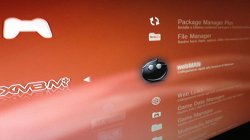
Following up on the previous update of XMB Manager Plus (XMBM+) developer's Aldostools & Samson have made some updates and improvements to this XMB Modification that comes loaded with added functionality to the XMB. This XMB Mod takes over the Install Package File feature found on PS3 CFW's and supercharges it. You will still be able to install package files, but with many new additions such as a built-in XMB File Browser, Quick web links to Homebrew Store, Scene Sites (such as this one), Radio Links, Game & Save Manager and tons of other features[break]s[/break], you can get an idea of what this mod offers in the video below, but be warned that is a much older version and there is some changes and additions not seen in the video. This update provides a fix for a problem that has been around for sometime and Aldostools explains more about it below, but no longer should you see duplicate pkg's listed in the Package Manager. You can checkout more about this and all the details of XMB Manager Plus in the information provided below:

ABOUT XMB Manager Plus (XMBM+ MOD)
This is my (aldostools) modified version of the XMB Manager+ originally released by Team XMBM+. This version of XMBM+ (mod) includes various related files. category_game.xml is not installed automatically. XMBM+ (mod) can be updated directly from XMB if you have an earlier version already installed.
NEW - XMBM+ Changes in 0.23.003 (mod):CHANGELOGS
- updated web links and package manager.
XMBM+ Changes in v0.23.002 (mod) (Update by Samsom)
- Added radiofeeds.co.uk (uk and irish fm feeds)
- Fixed all SomaFM feeds
- Added descriptions.
- Fixed theradio.com link
XMBM+ Changes in v0.23.001 (mod):
- webMAN.xml
- web links
- package manager
- game manager.
aldostools said:This is a very old issue (display of same pkg twice)... The cause is because the folders are typically mounted as /dev_bdvd and /app_home. The XML for Package Manager includes both locations in the queries.
To minimize this duplicated package issue I made a quick update in XMB Manager Plus 0.23.003
http://aldostools.org/xmbextras.pkg
I also made a custom category_game.xml that includes support for webMAN, XMBM+ and Package Manager.
I basically split the queries for pkg on /dev_bdvd and /app_home in the different sub-categories of the Package Manager. So if a pkg is mounted in both /app_home and /dev_bdvd, it should be listed only once. But if the pkg is mounted only in one of these folders (/dev_bdvd xor /app_home), it will be listed is one of the sub-categories (Package Folder or Standard Package Location).
There is also an entry to have multiMAN always on top, even using folder groups on XMB. This feature is commented out, but it can be uncommented or customized to show IRISMAN00 instead of BLES80608 if the user prefers it.
VIDEO
[video=youtube;Eh918bCqITk]https://www.youtube.com/watch?feature=player_embedded&v=Eh918bCqITk[/video]
(Note: video of older version)
XMB ScreenShot
FEATURES
Highlights of XMBM+
- Package Manager Plus
- Allows homebrew/packages to be easily installed or deleted.
- Download Manager
- Allows homebrew or PSN packages
- Game Manager
- View and manage your ps3 applications, by type, by folder, by category etc..
- Homebrew Manager
- View and manage your homebrew applications
- File Manager
- Browse and Delete files from all locations such as hdd, usb etc.
- Multimedia Manager
- Browse, Copy, Rename and Play all your PS3's internal hdds media from one location. All options from the normal XMB categories are available in one new combined category
- Game Data Manager
- Includes all the game data tools from main XMB plus some more additions. Things like Gamedata, Backups are contained here.
- User Data Manager
- Includes all the user data tools from main XMB plus some more additions. Things like Save Data, Trophies and user folders are contained here.
- Web Links
- This section includes links to some popular websites for easier access.
Installation
Easy install on Cobra 7: (may not contain latest version of XMBM+, see UPDATE instructions below)
or
- Install XMBMODMAN by brunolee - XMBMODMAN vRev1C. by brunolee - PS3 Brewology - PS3 PSP WII XBOX - Homebrew News, Saved Games, Downloads, and More!
Manual installation
- Install COBRA CFW Tools by bitsbubba - COBRA CFW Tools v2.00 by bitsbubba - PS3 Brewology - PS3 PSP WII XBOX - Homebrew News, Saved Games, Downloads, and More!
1. Install a Cobra CFW. - (XMBM+ can be used also on non-Cobra CFW.)Official version of webMAN-MOD by M@tsumoto and aldostools: github.com/aldostools/webMAN-MOD
2. Install multiMAN 04.66.08 (or later if available) - http://store.brewology.com/ahomebrew.php?brewid=24
3. Launch multiMAN, go to Settings column and enable the option "Write access to dev_flash" (it's the 2nd option from bottom)
4. Go to multiMAN's mmOS (File Manager) pressing [Select] + [Start] buttons
5. Copy webftp_server.sprx (version 1.41.x) to the root of /dev_hdd0/
Use PRX Loader by u$er to launch webMAN manually on non-Cobra CFW: via brewology.com
(use new_core from Estwald to auto-start PRX Loader on system boot)
Latest webMAN MOD versions are available here: via brewology.com
Latest official versions are always here:
- For Cobra CFW: http://deanbg.com/webftp_server.sprx
- For Non-Cobra CFW: http://deanbg.com/webftp_server_noncobra.sprx (rename as webftp_server.sprx)
- For CCAPI: http://deanbg.com/webftp_server_ccapi.sprx (rename as webftp_server.sprx)
6. Copy the included boot_plugins.txt to the root of /dev_hdd0/
7. Copy the included category_game.xml to /dev_blind/vsh/resource/explore/xmb/ (do not edit this file unless you know what you're doing)
8. Reboot.
9. Install the included xmbmanplus_hdd.pkg
10. Enjoy XMBM+ on COBRA 7.0!NOTE: For support of /PS3ISO, /PSXISO, /DVDISO and /BDISO content on external drives with NTFS file system, install and execute prepNTFS.pkg
You have to use prepNTFS if you add new content to your NTFS formatted USB HDDs.
Do not forget to use [Refresh XML] / [Refresh HTML] to refresh webMAN's data.
How to update XMB Manager Plus (mod)1. Click the About option in XMB Manager Plus mod for the update option
2. If there is an update, you will be prompted to download the file (Save in the downloaded pkg in the root of the USB drive)
3. Install the downloaded pkg from Install Package Files
4. Refresh XMB launching any application (eg. BD Reset) and returning to XMB.