

-
ManaGunZ is a AIO (All-in-one) type Homebrew, this backup manager on steroids is an iris Manager Fork with a bit of a different appericnace and many unique functions and features that normally would take other tools for the PC to accomplish.
Note: This Video Demonstration is of Version 1.00 -
Game settings
Direct Boot It allow you to launch the game directly after mounting it. There isn't lot of game which support it (every Lego games works with), with this you don't have to go back to the XMB to launch the game.
Clean Syscall It disable peek & poke syscall, especially syscall 6, 7, 8, 9, 10, 35, 36, this syscall doesn't exist in a OFW. So, this option prevent you to be banned from PSN (especially with Black Ops II) but this isn't guaranted, risk 0 with a CFW doesn't exist. Moreover there is soooo many way to detect a CFW...
Change IDPS It change your IDPS in the lv2
Ext. Game Data It allow you to install gamedata in your usb device instead of inside your system. Basically , it redirect the path : "/dev_hdd0/game" to "/dev_usb000/GAMEI"
Payload Here you can choose which payload it will use to mount your game. I don't really know if a payload is better than another... from my experience, I always saw same results with every payloads You can choose the payloads
- Iris
- multiMAN
- Cobra
- Mamba
BD Emulation Here you can choose which type of emulation it will use to mount you game. This option allow to make some game working without any issue. This option is available for JB games only. You have the choice between 3 possibilities :
- None : There isn't any "special emulation", the path "/dev_bdvd" is just redirected to the path of the game.
- BD-Mirror : it patch the mount table in the lv2 to remplace the device dev_bdvd or dev_ps2disk for internal by the device where is stored the backup. This option works fine in extern only if there is only 1 device plugged.
- BD-EMU : It redirect the path of the libfs.sprx to the path of a libfs patched.
Patch libfs This option is available for JB games and if you choose "Emulation : BD-EMU". It allow you to choose which patched libfs do you want to use. I found 3 way too patch it from : MM, Iris and ReactPSN. I don't know if there is a patch better than an others.
Mount /app_home Basically, this is a redirection of the patch /app_home to the path "/dev_bdvd". This option allow to make some game working without any issue.
Use patched plugin This option is available if you choose "Yes" to mount "/app_home". The path "/app_home" is remplaced by "/dev_bdvd" inside the plugin explore_plugin.sprx . Also, the icon of the "/app_home" in the XMB is changed to a disk. Basically, it redirect the path of the original plugin to patched plugin
Game options
Add/Remove to/from favorites Manage a list your favorite games.
Rename Rename the title of your backup.
Delete game Delete your backup.
Copy game Copy your backup to another device.
Make Shortcut PKG Create a package stored to the path "/dev_hdd0/packages". This package once installed will be a "shortcut" of your backup in the XMB. You'll just have to launch it, few moment later, it'll return to XMB with your backup mounted. You can hold triangle once it launched to reconfigure the game settings of this "shortcut".
Patch EBOOT it change the fw version to 4.21 of your EBOOT (offset 0x400 or 0x40C) to prevent to have the error 0x80010009.
Re-sign it re-sign every executable of your backup with the 4.21 keys.
Convert to ISO / Extract ISO Convert your JB game to ISO / Extract your ISO to a folder.
Fix permission Change permission value to 0777 of every folder and file of your backup.
Check files (IRD) It check if the files of your backups aren't modified. It use MD5 hashes from IRD. If the IRD file isn't found in "/dev_usbXXX/IRD/[filename].ird" or "/dev_hdd0/IRD/[filename].ird" then it will download the IRD from http://jonnysp.bplaced.net .
Download update It allow you to download game's updates. The updates are downloaded to the path "/dev_hdd0/packages".
Properties Show the properties of your backup: Path, Format, Size, number of file, number of directory, system version...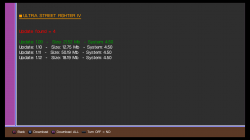
-
Add/Remove to/from favorites Manage a list your favorite games.
Rename Rename the title of your backup.
Delete game Delete your backup.
Copy game Copy your backup to another device.
Create ICON1 It allow you to create an ICON0 from the cover.
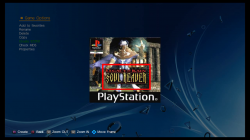
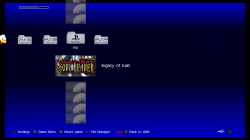
Enable WideScreen It apply pnach patches from PCSX2 databases.
Enable 480P / YFIX / FMV skip It apply patches from ps2wide.net/480p.html
Config to use Choose the CONFIG file you want to use.
Create CONFIG Create a CONFIG file.
Check MD5 Check you backup MD5 with redump.org MD5.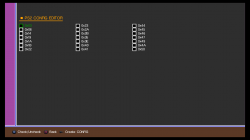
Properties Show the properties of your backup. -
Global Settings
Adjust screen Calibrate your display.Theme Settings
Download covers it download every missing game covers to "USRDIR/covers/[gameID].jpg"
Plugins Manager Enable or disable your plugins stored in "/dev_hdd0/plugins".
Update ManaGunZ It allow you to download the latest version of ManaGunZ.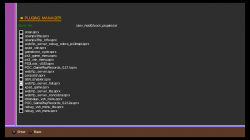
Game backup path Configure the name of directories where ManaGunZ will find your backups. You can add or remove a directory.
XMB priority If this option is activated the icon of ManaGunZ in XMB will be displayed at the top of the XMB column. To ativated this option you have to choose "yes" global setting and then to reboot the homebrew from the XMB.
Theme For each user interface, you can choose a theme.
You can create your own theme and you just have to put it to the following path : "dev_usbXXX/Themes/name_of_the_UI/name_of_your_theme"
For example, if you want to use your theme named "Example" for the UI "List", then put your images inside the directory named "Example" and then move your folder to the path "dev_usbXXX/Themes/List/Example".
You can also use multiMAN themes (*.thm) or original themes (*.p3t). Just put your themes in the folders "Themes". For example, "dev_usbXXX/Themes/MyTheme.thm" or "dev_usbXXX/Themes/MyTheme.p3t"
Then you just have to load your theme in ManaGunZ settings. Once you loaded it, it will be converted if needed and stored in ManaGunZ directory. So, you won't need to plug your device to use this theme anymore.
The name of the images of the theme can't be changed. For each theme you have a list of image.
- "List" : BG.PNG; BGS.PNG;BG_ICON0.PNG ;
- "Grid" : BG.PNG ; BGS.PNG ;
- "XMB" : BG.PNG ; BGS.PNG; SETTINGS.PNG ; FAVORITES.PNG ; PS1.PNG ; PS2.PNG ; PS3.PNG ; PSP.PNG ; SIDEBAR.PNG
- "Flow" : BG.PNG ; BGS.PNG;
Color X Choose the 4 mains colors used by MGZ.User Interface settings
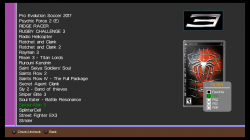
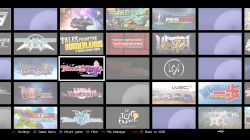
User interface Choose the interface you prefer.
- List
- Grid
- XMB
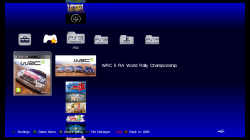
- Flow
Game sidemenu It display the game menu in the right side of the screen.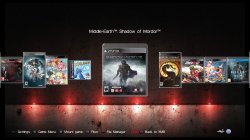
Show PIC1 It display the background picture of the current selected games. Use R1 with the UI LIST and GRID to display it.
Show cover It display covers.
Show game case It display the covers with the game case.
LIST Show ICON0 It display covers.
GRID Grid type This will allow you to chose how to make the grid move : by scrolling it or by moving the whole page.
GRID Direction The grid will move in this direction.
GRID Animated It will allow u to see every moves of the grid.
GRID Keep proportion This will keep the original proportion of the ICON0.
GRID Number of columns Choose the number of columns of the the grid.
GRID Number of lines Choose the number of columns of the the grid.
FLOW Inverse buttons It inverse the buttons right and left. -
Last edited:


