

montcer
Member
Hello,
I faced a hard time looking for a save editor for Silent Hill 2 HD Collection PS3 version. I find a way to mod it so I will share it for future generations, if any, if the world doesn't end or if the game have any other player! Hahahaha.
Anyway, you will need:
Ok, lets get started.
1. Install / Start both BruteForce and Horizon.
2. Extract the attached file somewhere. I recommend to you to create a folder in a easy access location, like Desktop or C:\ D:\ etc. I used Desktop\WB.
3. Get your save data from your PS3, transfer to your PC and make a backup of it. I located it in WB.
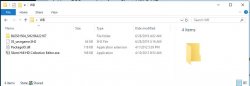
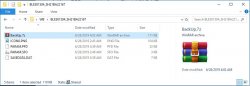
4. The WB should look like this:
I faced a hard time looking for a save editor for Silent Hill 2 HD Collection PS3 version. I find a way to mod it so I will share it for future generations, if any, if the world doesn't end or if the game have any other player! Hahahaha.
Anyway, you will need:
1. The attached tools. It includes an Xbox360 Dummy save file, and Silent Hill Xbox 360 Save Editor by ZEP v0.2. Thanks to him.
2. A program called Horizon. Here is a mirror with both the program and the tools.
3. BruteForce SaveData. I used 4.7.4. If the link is dead, I am sure it will be in the internet.
4. Your PS3 savedata from Silent Hill 2 HD.
5. 7z or any other compatible tool because some files are compressed with it.
2. A program called Horizon. Here is a mirror with both the program and the tools.
3. BruteForce SaveData. I used 4.7.4. If the link is dead, I am sure it will be in the internet.
4. Your PS3 savedata from Silent Hill 2 HD.
5. 7z or any other compatible tool because some files are compressed with it.
Ok, lets get started.
1. Install / Start both BruteForce and Horizon.
2. Extract the attached file somewhere. I recommend to you to create a folder in a easy access location, like Desktop or C:\ D:\ etc. I used Desktop\WB.
3. Get your save data from your PS3, transfer to your PC and make a backup of it. I located it in WB.
4. The WB should look like this:
STEP 1: BruteForce Part 1
STEP 2: Horizon Part 1
STEP 3: Mod The File
STEP 4: Horizon Part 2
STEP 5: BruteForce Part 2
STEP 6: FINISH
-
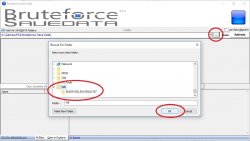
1. In BruteForce, click in the three dots located up right in the screen. A windows will open so you can locate your save(s) patch. Do it and click ok.
2. Click on the save you are going to work with, and notice it should have a file in the list at the left corner. Right click on it -> Decrypt PFD -> LEFT CLICK.
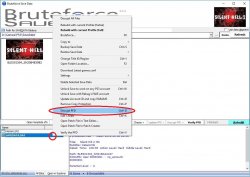
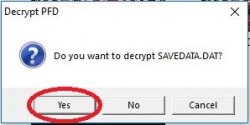
3. The program will ask if you want to decrypt it. Click on YES.
4. Now you are done for the next step, HORIZON.
-
1. Go to TOOLS -> PACKAGE MANAGER -> OPEN
And locate 05_savegame.SH2, which, if you are doing it like me, should be in Desktop\WB\05_savegame.SH2
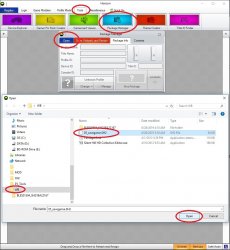
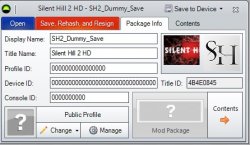
2. Once opened, it should look like this:
3. Go to CONTENTS -> RIGHT CLICK IN 05_savegame.SH2 -> REPLACE -> DESKTOP\WB\YOUR_SAVE\SAVEDATA.DAT -> LEFT CLICK
Note: SAVEDATA.DAT must be decrypted if you are following this tutorial. Notice that a file called "~files_decrypted_by_pfdtool.txt" will be in the save folder if so.
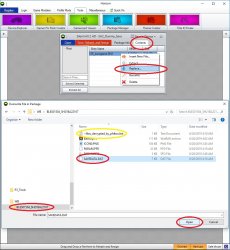
4. The program will prompt saying "File replaced successfully!". Click on OK.
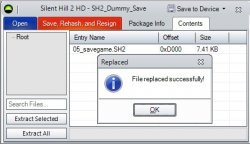
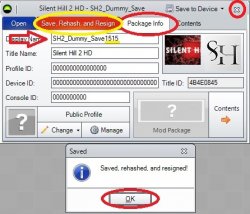
5. Click on PACKAGE INFO, slightly change the name in DISPLAY NAME (I added some random numbers at the end), click on SAVE, REHASH, AND RESIGN, and click on OK in the windows that will POP with the confirmation, and CLOSE the PACKAGE MANAGER windows in the X up right (Not the HORIZON program).
NOTE: It is very important to change the name in Display Name and close the PACKAGE MANAGER windows. Otherwise, the program may not really save and finish the file, don't know why. It is not necessary to close HORIZON.
-
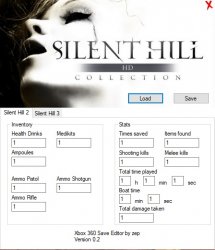
1. Open Silent Hill HD Collection Editor.exe, and CLICK on LOAD. Locate 05_savegame.SH2. All the fields should be filled with "1".
2. Mod the fields you want to, and click on SAVE, then OK in the windows that will prompt.
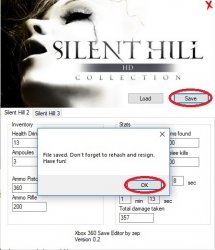
3. You can now close the Mod program and follow to the next section.
-
1. Repeat the Step 2.2 (Horizon Part 1).
2. Go to CONTENTS -> RIGHT CLICK in 05_savegame.SH2 -> EXTRACT -> Save it as SAVEDATA.new or any other name.
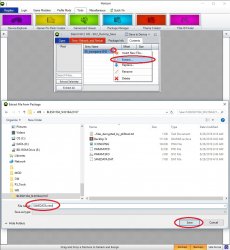
3. Check if the file was created. If not, repeat since Step 4.2.
4. Go to your Savedata folder and delete SAVEDATA.DAT. If it is being used, close BruteForce and try again.
5. Once deleted the previous file, rename the output file from step 4.3 as SAVEDATA.DAT. It must be located within the very same folder as PARAM.PFD, PARAM.SFO and ICON0.PNG.
6. Continue in the following section.
-
1. Open BruteForce if it was closed, and click in REFRESH in the upper right corner.
2. Click in ENCRYPT PFD -> ENCRYPT DECRYPTED FILES, and click YES in the windows that will pop.
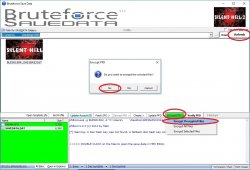
3. The lower left corner green color should be removed. If you want to check,
-
1. Rearm your save folder, and notice that the only modified files were SAVEDATA.DAT and PARAM.PFD, the last one to decrypt / encrypt.
2. Place the save in your PS3 and you are good to go!
Attachments
Last edited:


