Recently we seen the POC video that developer @OsirisX[ released showcasing the Steam App running on the PS4 via PS4 Linux. Now the developer details with a nicely written tutorial that we have broke down in our new tabbed format for easier consumption of information in how to get Steam running on your PlayStation 4 console that is running version 1.76 firmware and utilizing the webkit exploit and PS4 Playground. Tell us your thoughts and opinions of this recent advancement for the PS4 Hacking Community

About
Requirements
*** Tutorial: Part 1 ***
*** Tutorial: Part 2 ***
*** Tutorial: Part 3 ***
*** Tutorial: Part 4 ***
Tips
Recommended Software
What's Not working / Workarounds
Notes
-
.- Tutorial: Installing Steam on PS4 Linux
- Author: @OsirisX
- Original Post Location: via wololo.net
This guide is WIP and more pics will follow
"You may have seen my video (--->) running Steam on the PS4 and this tutorial will explain the procedure. Originally I intended to use Ubuntu for this guide since there's already a tutorial for that but I was having problems enabling graphics acceleration. Instead I chose Fedora which seems to work fine."--------------------------------------------------------- -
Required Hardware:
- PS4 Console with 1.76 Firmware Installed
- USB disk with at least 8 GB.
- PS4 Console with 1.76 Firmware Installed
-
Boot up Fedora using VirtualBox (with your usb disk attached) and wait until it reaches the welcome screen.
Before we actually install Fedora, we need to partition the usb disk. Open up a terminal and type the following the commands.
Code:Before we actually install Fedora, we need to partition the usb disk. Open up a terminal and type the following the commands.
Find your usb disk location (Ex: /dev/sda) and use parted to partition it.
Code:parted /dev/sda mklabel msdos mkpart primary fat32 1MiB 513MiB mkpart primary ext4 513MiB 100% quit mkfs.fat -F32 /dev/sda1 mkfs.ext4 /dev/sda2 -
Keeping the terminal open, go back to the welcome screen and click "Install to Hard Drive". Click on "Installation Destination" once the summary page comes up.dd
Select your disk and click on "I will configure partitioning" under storage options. Then click "Done".
Once the next screen comes up, select /dev/sda2 partition on the left. Use the mount point root "/" and select "Reformat" next to File System. Then click on "Update Settings"
Click on "Done" and then "Accept Changes" when the change summary page comes up.
Finally, click on "Begin Installation" when we're back at the summary page. At this point, you should configure your root password and user.
Before shutting down Fedora, we need to install the ps4 Radeon drivers. -
Go back to the open terminal and mount the partition that you just installed Fedora to.
Code:mount /dev/sda2 /mnt
Enable ssh server.
Code:ystemctl restart sshd
Find the ip address of your VM.
Code:ifconfig
We also need to set a password for root to do file transfer with ssh.
Code:passwd root
-
Use WinSCP or Filezilla from your host to transfer over ps4-radeon-rpm.zip to /mnt/tmp. Use the ip address of your virtual machine, the user as root, and the password you set for root.
(Note: If you get connection errors, you may need to set your network adapter to bridged in VirtualBox network settings)
Go back to the VM's terminal and chroot into installed Fedora.
Code:cd /mnt mount -t proc proc proc/ mount -t sysfs sys sys/ mount -o bind /dev dev/ chroot /mnt
Now we can install the patched Radeon drivers.
Code:cd /tmp unzip ps4-radeon-rpms.zip cd ps4-radeon-rpms dnf install --nogpgcheck *.rpm
If you get an error with drm-utils, do
Code:rm -rf drm-utils-2.4.65-1.fc23.i686.rpm dnf install --nogpgcheck *.rpm
Gnome desktop can be too heavy for the ps4 to handle. I recommend installing something lighter such as "awesome". Others may work as well but haven't tested.
Code:dnf install awesome
Edit /home/<user>/.xinitrc and add
Code:exec awesome
Disable gdm at startup:
Code:ln -sf /usr/lib/systemd/system/multi-user.target /etc/systemd/system/default.target
We should also disable vsync to reduce graphical errors.
Edit /home/<user>/.drirc and add
Code:<device screen="0" driver="dri2"> <application name="Default"> <option name="vblank_mode" value="0"/> </application> </device>
Enable ssh server at startup if you like.
Code:systemctl enable sshd
Finally install Steam.
Code:dnf install http://download1.rpmfusion.org/free/fedora/rpmfusion-free-release-$(rpm -E %fedora).noarch.rpm http://download1.rpmfusion.org/nonfree/fedora/rpmfusion-nonfree-release-$(rpm -E %fedora).noarch.rpm dnf install --nogpgcheck steam
Exit out of chroot, unmount your drive and power down VirtualBox.
Code:exit cd / umount -R /mnt poweroff
Copy over bZimage & initramfs.cpio.gz to the fat32 partition of your drive if you haven't done so already.
Startup your PS4 with your usb drive in and boot up Linux with PS4 Playground. Once you get to the init screen, type:
Code:fdisk -l
Find your Fedora partition and mount it.
Code:mount /dev/sda2 /newroot
Start up Fedora
Code:exec switch_root /newroot /newroot/sbin/init
You should then get a login screen. Login and type
Code:startx
This will boot up your DM.
Open up a terminal and type:
Code:glxinfo | grep vendor
You should have a line saying "AMD LIVERPOOL". This means graphics acceleration is working.
Finally open up a terminal and start Steam. Because Steam comes shipped with it's own shared objects, we need to add LD_PRELOAD path before calling steam otherwise it will load older libs.
Code:LD_PRELOAD='/usr/$LIB/libstdc++.so.6 /usr/$LIB/libgcc_s.so.1 /usr/$LIB/libxcb.so.1' steam &
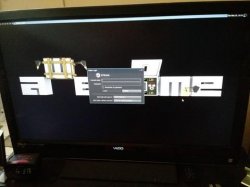
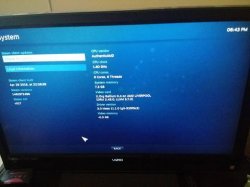
-
Tips:To launch apps from remote computer through ssh, we can just add DISPLAY=:0
Code:DISPLAY=:0 LD_PRELOAD='/usr/$LIB/libstdc++.so.6 /usr/$LIB/libgcc_s.so.1 /usr/$LIB/libxcb.so.1' steam -bigpicture &
To restart UI based login, you can do:
Code:systemctl restart gdm
And make it permanent by
Code:systemctl enable gdm
-
- Kodi
Code:dnf install kodi kodi-standalone
-
What's not working?
- Sound over hdmi, wifi, bluetooth, ethernet(only gigabit works)
- Usb sound card, usb wifi, usb bluetooth, etc.
-
Notes:
- Whenever updating packages with dnf, remember to exclude Radeon lib updates as they are unpatched for the PS4.
Code:dnf upgrade --exclude=libdrm*,mesa*,xorg-x11-drv-ati
Source of Tutorial (& original format): wololo.net
Last edited:


 we r near