PS3 [UPDATE2] multiMAN v 04.81.00 / .01 /.02 ( BASE / UPDATE / STEALTH for CEX & DEX) Updates by deank

(SEE UPDATE x2 v4.81.01 + 4.81.02 ) Original Article: 04.80.00: Developer @deank has brought his popular backup manager up to date with the release of multiMAN v04.81.00 . In this release the developer has added of course 4.81 CFW support for what appears only on CEX CFW at this time, but Stealth (aka StealthMAN) user will see an update supporting 4.81 CEX. This is a feature rich and popular backup manager that now has full 4.81 (CEX) Support . Additional releases for the PS3 firmware update of 4.81 can be seen here in our forums.


(4.81.01): deank has released the latest version that gives full DEX support to the backup manager. Update 2 (4.81.02) developer @deank has released a new update providing a fix for a reported issue that addressed a problem with nethost/netiso feature on DEX Custom Firmwares

multiMAN_4.81_CFW_deank.jpg


  • Deank (1/8/2017) said:
    mM 04.81.02 was released when I removed the link for the test version and is available within mM as always (or from the web column) Also sacd-ripper.pkg is updated to support DEX 4.80

    This SACD Ripper is compiled with support from 3.55 up to 4.81. It doesn't require keys on usb stick and hopefully the extracted modules will work on all firmwares. Let me know if someone tests it.

    http://multiman.deanbg.com/multiman/feed/app/sacd-ripper.pkg

    Update x2 multiMAN v04.81.02

    • Fixed nethost/netiso issues on DEX CFW

    UPDATE - multiMAN v04.81.01
    • Added support for CFW 4.81 (DEX)

    NEW - multiMAN v04.81.00
    • Added support for CFW 4.81 (CEX)
    • Added update for Stealth version

    multiMAN v04.80.00

    * Added support for CFW 4.80
    * Added update for Stealth version

    multiMAN v04.78.02/04.78.03
    * Fixed naming of FLASH/LV1/LV2 exports for CFW 4.66/4.76/4.78
    * Fixed EBOOT.BIN/SPRX patching for CFW 4.66/4.76/4.78
    * Updated Showtime/Movian to latest Bleeding Edge (04.99.812) - http://movian.tv
    * Updated stealthMAN (multiMAN Stealth version) to 04.78.02

    multiMAN v04.78.01
    * Fixed crash when scanning for /net_host (ps3netsrv) games

    multiMAN v04.78.00
    * Added support for CFW 4.78
    * Updated Japanese translation by Kyan_dudl

    multiMAN v04.76.00
    * Added support for CFW 4.76
    * Fixed BD-Mirror for 4.75 DEX


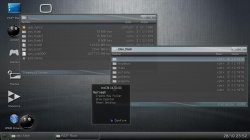
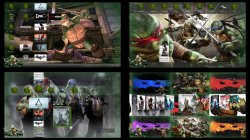
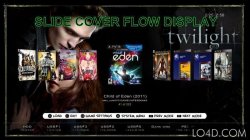
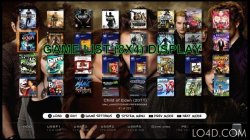
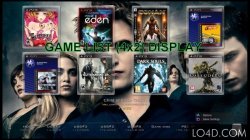
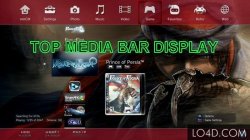
  • Various ScreenShots of multiMAN and its different views and modes.
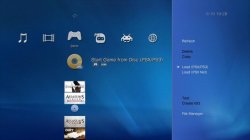
    MM3.jpg Screenshot_4.jpg PREVIEW.jpg multiman-backup-manager-2.jpg multiman-backup-manager-3.jpg multiman-backup-manager.jpg multiman-backup-manager-4.jpg multiman-backup-manager-5.jpg

(New Version) Download:


Last edited:
Where is this option in multiman???
Have you checked whether your drive 'sleep' feature can be turned off?
Some drives have the toggle feature & others don't. It's basically the very first thing to check & if the 'sleep' feature can be toggled off, the hdd manufacturer offers a utility to tweak this setting.

I dunno what hdd model you have exactly but this official Toshiba sleep removal tool v1.01 should do the job.
http://support.toshiba.com/sscontent?docId=98082914

If the sleep feature can't be turned off, personally I would change hdd rather than relying on a software workaround. Drives which auto sleep feature cannot be toggled off are not made for console use...
 
this is y I always buy the same hdd. I'm not sure if sleep mode is derived from the hdd or the pcb inside the enclosure, but I always buy WD elements. the fat version of the drive - I'd open those up and stick them in a sabrent enclosure. they look nice, can stand straight up, and the hdd activity light is on the front (it should flash red while active; idle will be blue). the smaller WD drives I leave in the enclosure. these, however, r not self-powered, so u need a y cable for them. no sleep mode issues there either though. I also have a hitachi and a seagate hdd in a sabrent enclosure, but I don't remember the model of them. none of these hdds have sleep issues, so if u r in the market for a new hdd, try WD elements. there r countless others, but that's one make/model I know that works as I've used them with the wii, wii u, 360, and ps3. I'm using a new hdd for the wii u (virtual wii) at this very moment actually. it's a wd blue that I put in a sabrent enclosure. I've even fallen asleep with the drive and console on, and it worked without issue after waking up. I've done the same with the 360 (not the ps3 though). lol :-P
 
Every manufacturer including Western Digital includes power management features like auto sleep in their hdd. It just happens to be set or managed differently on different models.
Check the specs & you will realise that there is an auto sleep feature in WD elements drives too! You will also find people desperate to turn it off for whatever reasons.
Ultimately, manufacturers sell some hdd models that are problematic & others that aren't...
 
Every manufacturer including Western Digital includes power management features like auto sleep in their hdd. It just happens to be set or managed differently on different models.
Check the specs & you will realise that there is an auto sleep feature in WD elements drives too! You will also find people desperate to turn it off for whatever reasons.
Ultimately, manufacturers sell some hdd models that are problematic & others that aren't...

I was not aware of that, so I should rephrase that to hdds that have given me no trouble. is that an issue with the hdd itself or the pcb inside the enclosure? I think I've had the old WD elements hdds in their original enclosures for some time, but never as an hdd for my consoles. I put them in the sabrent enclosures before I used them there. I did have some off-brand enclosures that looked like the sabrent ones before I knew who made the official brand. now, I use their (the WD elements) boxes to hold up the new sabrent enclosures (2 per box) as well as my hdmi dongle box, so that they're not on the carpet. :-P it's a ghetto-style setup. lol
 
I might point out that they're still read as WD by hdd tools, so I'm thinking it's the hdds themselves.
 
Have you checked whether your drive 'sleep' feature can be turned off?
Some drives have the toggle feature & others don't. It's basically the very first thing to check & if the 'sleep' feature can be toggled off, the hdd manufacturer offers a utility to tweak this setting.

I dunno what hdd model you have exactly but this official Toshiba sleep removal tool v1.01 should do the job.
http://support.toshiba.com/sscontent?docId=98082914

If the sleep feature can't be turned off, personally I would change hdd rather than relying on a software workaround. Drives which auto sleep feature cannot be toggled off are not made for console use...
Thanks,
It worked, but, how extract my external hdd from my ps3 ??? Because my HDD sounds when I extract it from the usb
 
Ok. Problem solved.
"Extracting" the external hdd from the ps3?
What do you mean exactly?
How to unmount & unplug the external usb drive?
 
How to unplug the external usb drive? Because ,When i disconnect the hdd from my ps3, the hdd sounds
There is no particular method because there is no need to unmount the usb device prior to unplugging on the PS3.
I dunno what kind of sound you are talking about or if it's actually a problem
If you prefer you can switch the console off before unplugging your hdd but it's really not required or practical...
 
Last edited:
Another question without any details.... No brand, no model, except that it's usb 2.0, we dunno what kind of usb controller your hdd enclosure uses either...

However, as a rule of thumb, the majority of usb 2.0/3.0 enclosures should work, you can put any standard hdd 5400RPM or 7200rpm, or even a SSD or SSHD.
As long as you use a standard hdd in a standard enclosure you should be ok.

Most of the issues related to external usb devices come from branded ready made usb hdd using an extra partition to store some software utilities. Often, the extra partition cannot be deleted & causes problems with the ps3.
That won't be a problem if you are not using a branded ready made external usb device...

Another important detail, the ps3 doesn't support the newer GPT formatting used by modern PCs , you must use MBR partitions. If your hdd comes with preformatted in GPT, delete the partition(s) & repartition the drive appropriately using MBR.
 
Last edited:
Another question without any details.... No brand, no model, except that it's usb 2.0, we dunno what kind of usb controller your hdd enclosure uses either...

However, as a rule of thumb, the majority of usb 2.0/3.0 enclosures should work, you can put any standard hdd 5400RPM or 7200rpm, or even a SSD or SSHD.
As long as you use a standard hdd in a standard enclosure you should be ok.

Most of the issues related to external usb devices come from branded ready made usb hdd using an extra partition to store some software utilities. Often, the extra partition cannot be deleted & causes problems with the ps3.
That won't be a problem if you are not using a branded ready made external usb device...

Another important detail, the ps3 doesn't support the newer GPT formatting used by modern PCs , you must use MBR partitions. If your hdd comes with preformatted in GPT, delete the partition(s) & repartition the drive appropriately using MBR.
thanks,bguerville :)
 
a doubt,
I have games in ISO Split in the external hdd,
how can I pass them to internal hdd using multiman ???
It depends what you want to do...
Do you want to keep the iso file split on /dev_hdd0 or do you want to merge the files into one standard iso file?

If you want to keep the iso split you can simply copy the all the files with mmOS from /dev_usb00x/PS3ISO to your /dev_hdd0/PS3ISO folder. The game would keep working in split iso mode.

If you want multiman to merge the split files into the original file on internal hdd, the files must be split according to psarc format requirements & must be named properly with one of these syntaxes otherwise merging will fail:
1. filename.666xx extension where xx represents the file number, like 00.
2. filename.x where x represents the file number, like 0.
3. filename.psarcx where x represents the file number, like 0
Open mmOS, multiman's file manager, to rejoin split files. Browse to the first file of the split series.
Press circle button to "Cut" or "Copy".
Browse to a folder on /dev_hdd0 & press circle button to "Paste" .
MmOS will automatically copy and merge the other split files into one file. Btw the method works for any file type not only iso iirc, any file bigger than 4 gb can be split to fit on a fat32 drive & merged again by multiman.

If the multiman merge doesn't work for whatever reason, note that you can also merge your iso files on PC using a merge tool, you can use the ps3splitter utility in PS3 Tools Collection by aldostools or there is this project made for the ps3 http://karmian.org/projects/ps3merge but also various other PC utilities not specific to the ps3.
You can use ftp to transfer the iso or a ntfs external drive. I recommend that you use Irisman's file manager to access ntfs drives for file copy operations because mmOS support for ntfs is not very good.
 
Last edited:
It depends what you want to do...
Do you want to keep the iso file split on /dev_hdd0 or do you want to merge the files into one standard iso file?

If you want to keep the iso split you can simply copy the all the files with mmOS from /dev_usb00x/PS3ISO to your /dev_hdd0/PS3ISO folder. The game would keep working in split iso mode.

If you want multiman to merge the split files into the original file on internal hdd, the files must be split according to psarc format requirements & must be named properly with one of these syntaxes otherwise merging will fail:
1. filename.666xx extension where xx represents the file number, like 00.
2. filename.x where x represents the file number, like 0.
3. filename.psarcx where x represents the file number, like 0
Open mmOS, multiman's file manager, to rejoin split files. Browse to the first file of the split series.
Press circle button to "Cut" or "Copy".
Browse to a folder on /dev_hdd0 & press circle button to "Paste" .
MmOS will automatically copy and merge the other split files into one file. Btw the method works for any file type not only iso iirc, any file bigger than 4 gb can be split to fit on a fat32 drive & merged again by multiman.

If the multiman merge doesn't work for whatever reason, note that you can also merge your iso files on PC using a merge tool, you can use the ps3splitter utility in PS3 Tools Collection by aldostools or there is this project made for the ps3 http://karmian.org/projects/ps3merge but also various other PC utilities not specific to the ps3.
You can use ftp to transfer the iso or a ntfs external drive. I recommend that you use Irisman's file manager to access ntfs drives for file copy operations because mmOS support for ntfs is not very good.
Thanks,:)
All my games in iso split worked copy all the files with mmOS from dev_usb001 / PS3ISO to dev_hdd0 / PS3ISO folder
 
Thanks,:)
All my games in iso split worked copy all the files with mmOS from dev_usb001 / PS3ISO to dev_hdd0 / PS3ISO folder
Remember that the 4gb file size restriction is only a problem on fat32 devices so as long as you use the internal hdd (UFS2 partition) or an external hdd partition formatted in NTFS to store your files, you should never use split files.
On the long term, if you intend to keep your files on the console itself, I recommend you merge all the split iso files located on /dev_hdd0.
 
Here is some technical data about hdd (internal & external).
http://www.psdevwiki.com/ps3/Harddrive
However choosing where to store your games depends on your tastes & on the usage you make of your console more than just performance considerations.
If you ask several people what kind of setup you should use, you will are likely to get completely different answers from each person & they may all be correct to some of extent depending on what they do with their console...
Here are a few pointers although there is no miracle setup & choices are ultimately up to to you.

For instance, if you play ps3 iso games only then you may want to use a ntfs external drive or internal hdd to avoid splitting isos.
If you are using legacy JB format ps3 games, you may prefer to avoid using the internal hdd to avoid performance penalty due to the file allocation table having to deal with thousands upon thousands of files. In this case, choose ntfs or even fat32 if you have other use for it.
If you use a lot of ps2/psp or emu games then you may prefer to use the internal hdd rather than a ntfs drive so backup managers don't need to copy the game files to the internal hdd to launch the games.

Finally, a number of users prefer to rely on ps3netsrv & keep their games on a network drive. Using LAN, ps3netsrv is very efficient & offers very good performance.
ps3netsrv can be hosted on
1. NAS drives.
2. Linux PC.
3. Windows PC.
Source + Binaries for the modded version's by aldostools are available at
github.com/aldostools/ps3netsrv.
Source + Binaries for the original ps3netsrv by deank can be downloaded here: http://deanbg.com/ps3netsrv.zip

There is also the case of the external gamedata feature that allows a user to install a game on a USB device. To use this feature, you must use a fat32 hdd.

Note that if you really don't want to choose between ntfs & fat32, it is possible to setup an external hdd with 2 partitions, 1 fat32 & 1 ntfs. This way you get the best of both world....
 

Featured content

Trending content

Back
Top