PS3 [Research] Modifying the Gaia Visualization (custom_render_plugin/earth.qrc)

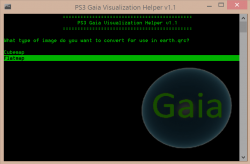
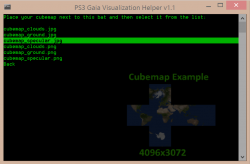
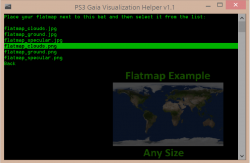
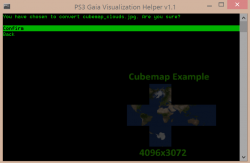
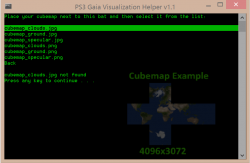
I am working on a better BAT that allows you to choose exactly which image you want to prepare. So far it only has support for cubemaps and flatmaps (jpg and png). I plan to add all the features from the previous BAT but with better error handling and more flexibility.

For example I will add options to ONLY prepare stars.jpg or stars.png into a 1024x1024 DDS. Also it will be able to handle images of any resolution.

This is using the cmdmenusel plugin now so it allows you to use the mouse or keyboard to browse menus, go back etc.

Its a WIP, any suggestions let me know? :)

upload_2020-3-6_13-28-26.png upload_2020-3-6_13-28-51.png upload_2020-3-6_13-29-12.png upload_2020-3-6_13-27-44.png upload_2020-3-6_13-30-19.png
 
I am working on a better BAT that allows you to choose exactly which image you want to prepare. So far it only has support for cubemaps and flatmaps (jpg and png). I plan to add all the features from the previous BAT but with better error handling and more flexibility.

For example I will add options to ONLY prepare stars.jpg or stars.png into a 1024x1024 DDS. Also it will be able to handle images of any resolution.

This is using the cmdmenusel plugin now so it allows you to use the mouse or keyboard to browse menus, go back etc.

Its a WIP, any suggestions let me know? :)

View attachment 24597 View attachment 24598 View attachment 24599 View attachment 24596 View attachment 24600

Thats really nice, so if i select to only add the stars it will generate a full default earth.qrc with just the stars replaced?

Make an option to add the changes to a new generated file with the default earth just with the selected options replaced

and other to add the changes to an already existing qrc
 
Yeah, you will be able to do all that.

This will only be a helper to the app that pink1 is working on. His application is much more advanced than anything a bat can do, it's able to build from an extracted earth.qrc. So I am getting this bat ready so it can be used alongside that app to prepare images from flatmaps and cubemaps. You feed this bat your images, and it will create the proper files and folder structure for up to 74 images like this:


upload_2020-3-6_15-27-52.png


This way you will be able to use any qrc you want as a base by extracting it with pink1s app, and then individually replace any layer you want using images prepared with this bat, then rebuild from the modified folder with pink1s app.
 
Last edited:
@DeViL303 a single DDS file containing the 6 cubefaces is a cubemap, and the 6 cubefaces stored as separated files is a cubemap too
Yeah there are lots of ways of storing them but I am just going with the "standard" one you find on google images.


upload_2020-3-6_20-23-56.png


I guess I could add support for other types but I don't think most earth.qrc modders will be going that deep on it tbh.
 
My point is the word "cubemap" is not explicit enought because includes all them, so in some way all them are standards
The one you like is a "cross cubemap" (sometimes named "cubecross", or "cubex") but even inside this group of "cross cubemaps" there are different styles based in the orientation of the cross


Edit:
I dont have a alternative name suggestion for the cubecross style you are using, i guess there must be some technical name for it (and for his orientation), but i dont know
Probably is so popular because is supported by OpenGL/Vulkan that became very popular (but im not sure im just guessing)
In that case it would be interesting to know if that cubecross with the same orientation you are using is really the standard for OpenGL... in that case we could say is a "standard OpenGL cross cubemap"
 
Last edited:
True, but I don't want to over complicate it with big long names for all the options. I could add the word "cross", and then "left hand" cross etc etc..but I think with the preview shown in the background of the command window and the fact that more than 90% I have come across are like this it will be ok.

I could add the word "cross" here to be sure the users know.


upload_2020-3-6_20-49-1.png


"Flatmap" is just a term I made up too afaik. :)
 
On second thoughts, I guess I could add support for cubemap crosses in all 4 orientations easily enough, I have the base there now. Also 6 layer DDS cubemaps...hmm...I will try. Why not.

I can add sub menus and previews for all orientations of the cross.

Edit : It seems there is only 3 different orientations really. Left heavy is the most common, then top heavy, then right. I don't see any upside down crosses.
 
Just for curiosity sake, i found this sentence in google (it was just a random comment, not a tutorial or serious explaination)
https://stackoverflow.com/questions...n-opengl-cubemap-from-cross-layout-image-file
FYI, there are many cubemap image file formats. V-strip is easiest to read. "Horizontal cross" seems to be popular. In general, there are {horizontal, vertical} x {cross, strip, tee} (and probably more).

That made me find this, it seems this 6 are popular, additionally with the conversion back to separated CubicFaces there are 7 popular "layouts"

CubicFaces2HorizontalCross --> http://www.andrewhazelden.com/proje...e-conversions.html#CubicFaces2HorizontalCross
CubicFaces2HorizontalStrip --> http://www.andrewhazelden.com/proje...e-conversions.html#CubicFaces2HorizontalStrip
CubicFaces2HorizontalTee --> http://www.andrewhazelden.com/proje...ide-conversions.html#CubicFaces2HorizontalTee
CubicFaces2VerticalCross --> http://www.andrewhazelden.com/proje...ide-conversions.html#CubicFaces2VerticalCross
CubicFaces2VerticalStrip --> http://www.andrewhazelden.com/proje...ide-conversions.html#CubicFaces2VerticalStrip
CubicFaces2VerticalTee --> http://www.andrewhazelden.com/proje...guide-conversions.html#CubicFaces2VerticalTee
 
Hmmm, Actually on third thoughts forget it. :) Supporting 90% of what is available is enough.. To support the other 10% would take a lot of work. There are other tools for converting anyway.

Found this site with loads of free horizontal cubemaps, they're the skybox kind though.
http://www.humus.name/index.php?page=Textures
 
For the matter of PS3 earth mapping.... we just need to worry in the "horizontal" ones... because we know sony labeled the equator cubefaces from 0, 1, 2, 3
If we reorder them in a vertical cubecross that numbers are going to be disaligned (the equator is not going to look like an straight line), this doesnt seems to be how they was working

Actually... now im thinking in it the one that matches better with earth cubemap from the PS3 is the "horizontal strip". If we reorder the cubefaces in a horizontal strip that numbers are going to be aligned perfectly 0,1,2,3,4,5
Is just is not much convenient to use the "horizontal strip" because you have 2 cubefaces (for the poles) that doesnt matches in his borders with the other faces next to them


Edit:
Not sure though... the 180º rotation of the official images is becoming confusing again :/
 
Last edited:
Has anyone been playing with the fpo/vpo files. I've been looking at them on and off and have a pretty good idea about most of the format but if anyone has any info they'd like to share that'd be awesome :)

I've also tried playing with the gtf files but have had mixed results with them. Some are fine but others the dds isn't quite right.
 
Here is where I got to with the new Gaia bat with menu that can be controlled via mouse or arrow keys. I wanted to add more but never had time.

DOWNLOAD: http://devil303.com/QRC/PS3_Gaia_Image_Tool_v1.2.zip

For now it can only handle cubemaps (cross), flatmaps, and it can create wrappers from 512x512 tiles (4k or 8k), it can also clone seamless images from Genetica Viewer. This is meant to be used as a companion to Xforge. All this does is prepare the 24 images for each layer with the correct distortion, and folder structure and naming.

This works fairly simply, it handles the images depending on the naming.

First you double click the bat file, then choose your image type.
upload_2020-8-31_1-18-5.png


Then you confirm which image you want. For cubemaps these are the options.
upload_2020-8-31_1-24-51.png


Make sure your image is named correctly for the layer you want to convert it for, otherwise it will error if it can not find it:
upload_2020-8-31_1-26-16.png


If the image exists it will ask you to confirm the orientation:
upload_2020-8-31_1-27-52.png


If everything goes well it will say:
upload_2020-8-31_1-29-6.png


Check your files in the earth/flashrom folder.
upload_2020-8-31_1-30-28.png


Now these files can be used with Xforge, simply extract earth.qrc to a folder, then replace the images this bat created and rebuild the qrc using Xforge.

This might have bugs, If anyone wants to test it out, make changes or suggestions work away. I might be able to help or get to them.

Some terms this bat uses and the type of images it requires:
"Tile" = one 24th of the globes surface (512x512)
"Flatmap" = the type of maps found here https://www.solarsystemscope.com/textures/ (These can be any size, ratio of width to height must be 2:1)
"Cubemap" = horizontal cubemap oriented like above screenshots. (3072x4096)
"Seamless Tile" = the type of images that can be found here http://spiralgraphics.biz/packs/ or created with the Genetica viewer windows application (512x512)
"wrapper" = This option clones the 512x512 tile.jpg into a 4x8 grid or a 8x16 grid, then converts it like a flatmap

Thanks to everyone who helped with Xforge etc, @pink1, @sandungas, @aldostools @Berion

Thanks to the creators of all the exes included in the bin folder too, I forget where most of them came from tbh.

I probably forget to explain some stuff, but sure try it out, hopefully its fairly self explanatory, might need a little bit of trial and error.

Here are some examples of images in the correct formats and with the correct naming for this bat: http://devil303.com/QRC/Gaia_tool_example_images.zip
 
Last edited:
Bit more detail about how it works and each mode.

After conversion of any image, you will find your 24 jpgs ready in the earth/flashrom folder, just copy this complete flashrom folder into any Xforge earth.qrc dump overwriting the originals. If you need to do multiple layers, then just use this bat to create all the images first, doing one layer at a time, then dump the complete flashrom folder into your earth.qrc dump just the very same. Then simply rebuild with Xforge just like any other rebuild.

Note: You will also find copies of images from all stages of conversion inside the bin/temp folder. This are not needed for anything, and this folder is cleared BEFORE every new conversion, but these files can be useful for seeing where in the process it went wrong, if there is an issue with the final image.

Seamless Tile (Complexity: Level 1 - simple):
This just takes your 512x512 seamless.jpg and makes 24 copies of it with the correct naming and folder structure for earth.qrc. This should work out perfectly if your tile is truly seamless.

Cubemap (Complexity: Level 2 - little bit of work):
If you give it a cubemap, it cuts it into the 6 faces of the cube. Then cuts those into the 24 jpgs in the correct folder layout. Fairly simple. No distortion needed or added as this assumes your cubemap was created properly.

Flatmap (Complexity level 3 - Distortion applied):
First this creates a cubemap from your flatmap by applying the correct distortion, then it goes though the cubemap process shown above. So you choose which layer you want to prepare you flatmap for by naming it accordingly. Then chose it from the list just like a cubmap image.

upload_2020-8-31_2-59-57.png


upload_2020-8-31_3-1-32.png


Wrapper (Complexity: Level 4 - creates 32 or 128 clones , then does level 3 and level 2 too):
This first creates a grid out of the 512x512 tile.jpg, at 4x8 or 8x16 depending which option you choose.

upload_2020-8-31_2-57-3.png


Then it asks you which layer you want to prepare the image for:
upload_2020-8-31_2-57-58.png


Then it goes through the flatmap process shown above, and then the cubemap process.


I realize the menu system is a bit disorganized, with 2 different styles in use. One where the image needs to be named for the layer, and the other where you can choose the layer in the menu.

It can be improved, not sure if I will get around to it though or if its worth spending too much time on. If any one has ideas for a better way to organize it we can discuss it here, or just make some changes and post it if you want.

Someday I would like to add support for 6 individual face images, and some extra options like the ability to give it a single logo image, and have it placed on the front and back faces, with a fill color of your choice added to the other 4.

Any other ideas like that?

 
Last edited:

Similar threads

Back
Top