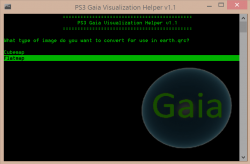
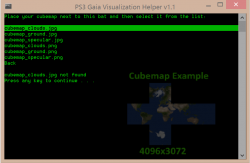
Bit more detail about how it works and each mode.
After conversion of any image, you will find your 24 jpgs ready in the earth/flashrom folder, just copy this complete flashrom folder into any Xforge earth.qrc dump overwriting the originals. If you need to do multiple layers, then just use this bat to create all the images first, doing one layer at a time, then dump the complete flashrom folder into your earth.qrc dump just the very same. Then simply rebuild with Xforge just like any other rebuild.
Note: You will also find copies of images from all stages of conversion inside the bin/temp folder. This are not needed for anything, and this folder is cleared BEFORE every new conversion, but these files can be useful for seeing where in the process it went wrong, if there is an issue with the final image.
Seamless Tile (Complexity: Level 1 - simple):
This just takes your 512x512 seamless.jpg and makes 24 copies of it with the correct naming and folder structure for earth.qrc. This should work out perfectly if your tile is truly seamless.
Cubemap (Complexity: Level 2 - little bit of work):
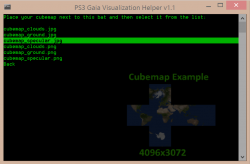
If you give it a cubemap, it cuts it into the 6 faces of the cube. Then cuts those into the 24 jpgs in the correct folder layout. Fairly simple. No distortion needed or added as this assumes your cubemap was created properly.
Flatmap (Complexity level 3 - Distortion applied):
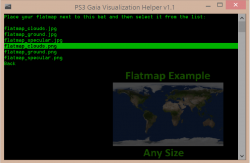
First this creates a cubemap from your flatmap by applying the correct distortion, then it goes though the cubemap process shown above. So you choose which layer you want to prepare you flatmap for by naming it accordingly. Then chose it from the list just like a cubmap image.
Wrapper (Complexity: Level 4 - creates 32 or 128 clones , then does level 3 and level 2 too):
This first creates a grid out of the 512x512 tile.jpg, at 4x8 or 8x16 depending which option you choose.
Then it asks you which layer you want to prepare the image for:
Then it goes through the flatmap process shown above, and then the cubemap process.
I realize the menu system is a bit disorganized, with 2 different styles in use. One where the image needs to be named for the layer, and the other where you can choose the layer in the menu.
It can be improved, not sure if I will get around to it though or if its worth spending too much time on. If any one has ideas for a better way to organize it we can discuss it here, or just make some changes and post it if you want.
Someday I would like to add support for 6 individual face images, and some extra options like the ability to give it a single logo image, and have it placed on the front and back faces, with a fill color of your choice added to the other 4.
Any other ideas like that?